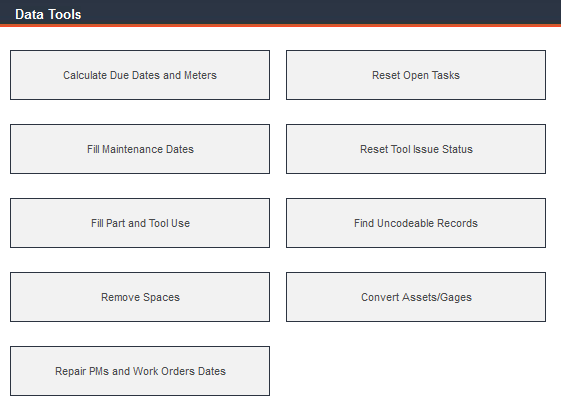
The Data Tools menu contains utilities that are intended for one-time use. Use these features only when instructed to do so by Technical Support or FaciliWorks documentation (such as update notices).
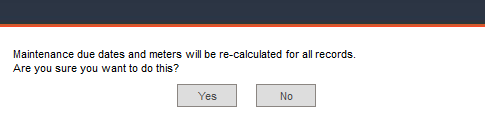
This utility recalculates all maintenance due dates. For example, if you change the maintenance frequency for punch presses from 60 days to 90 days and you have 25 punch press records, it would be easier to update the due dates by running this utility than to manually alter each of the 25 records. The following window appears when clicking the Calculate Due Dates and Meters button:
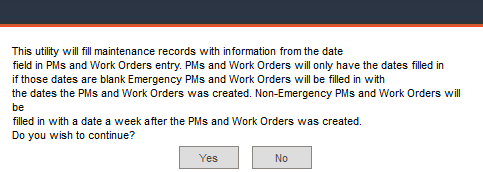
This utility fills in any missing dates for completed work orders. For emergency work orders, FaciliWorks makes both the maintenance due date and maintenance done date the same as the date on which the work order was created. For regular work orders, the program assigns a date of one week after the creation of the work order. The following window appears when clicking the Fill Maintenance Dates button:
Each part and tool record contains a Where Used tab which lists all assets that require the particular part or tool. This information can be entered manually for each part and tool record or click the Fill from Maintenance Jobs button in each record to import the data for that individual record.
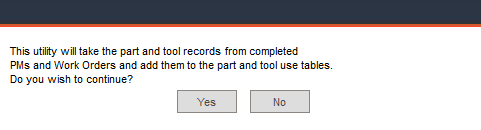
Use the Fill Part and Tool Use utility to fill in all of your part and tool records with the Where Used information from all non-archived, completed work orders. The following window appears when clicking Fill Part and Tool Use:
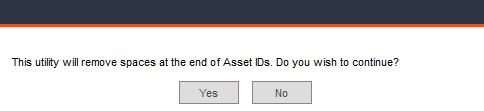
This utility should be run once after importing data from another program. This feature removes unnecessary trailing spaces from Asset IDs that may have been used by your old program. The following window appears when clicking the Remove Spaces button:
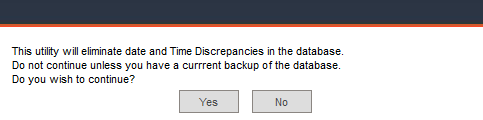
This utility checks all of your preventative maintenance and work order records for valid dates and times. If a record is missing one of these fields, the program will insert the required information. The following window appears when clicking the Repair PM and Work Order Dates button:
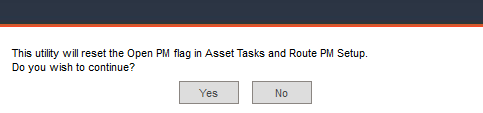
Use this utility to update the Open PM checkbox in each of your task records. This field can also be altered manually from within the Assets -> Task List -> Information sub-tab and the Route Preventative Maintenance Setup -> Asset List -> Information sub-tab. The following window appears when clicking the Reset Open Tasks button:
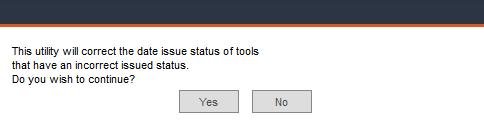
This utility corrects problems with imported records that show that a tool has been received even though it has not been issued. Do not run this tool unless instructed to do so by Technical Support. The following window appears when clicking the Reset Tool Issue Status button:
In FaciliWorks, you can print barcodes for parts, tools, assets and employees. Run the Find Uncodeable Records utility to check all of your ID numbers for parts, tools, assets and employees to see if any of them contain characters that cannot be converted into a barcode. If the utility finds any uncodeable records, it will provide a printable list of them. If no uncodeable records are found, a dialog box will appear to confirm this.
These barcodes are divided into two categories:
Code 39 – Under this type, the following are considered valid characters:
The letters A-Z, both capital and lowercase
Numbers 0-9
Special characters: underscore, forward slash, plus sign, period and dash
Code 128 – Valid characters under this type are:
The letters A-Z, both capital and lowercase
Numbers 0-9
Special characters: underscore, forward slash, plus sign, period, comma, dash, exclamation point, at symbol (@), carat (^), open and close parentheses, equal sign, pipe (|), backslash, colon, semicolon, greater and less than (> and <) signs, question mark and tilde (~)
This function will check the characters found in the Staff ID field for all staff records, Part No. field for all part records, Tool ID field for all tool records and Asset ID/Gage ID for all asset/gage records. (Gage records are used in 8i Calibration only.)
Upon clicking the Find Uncodeable Records button, the following dialog opens:
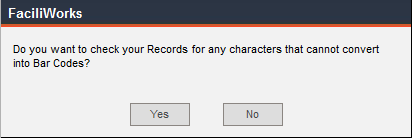
Click Yes and FaciliWorks will display the list of uncodeable records:
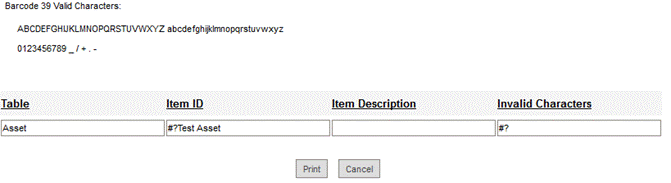
These errors must be corrected manually. For example, to correct the error shown in the example above, go to the Data Administration -> Assets -> Information tab and locate the uncodeable record.

Edit the Asset ID field contents, making sure that only valid characters are used.
Click the Save button and the following dialog will appear:
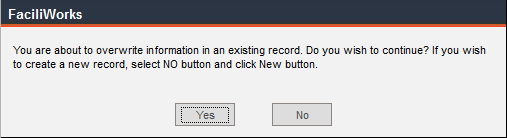
Click Yes to confirm the action.
Navigate back to the Data Tools menu and click Find Uncodeable Records. Since the only uncodeable record has been corrected, you will receive the following message:
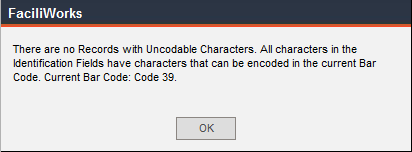
Click OK to return to the Data Tools menu.
Creating a new asset or gage record is done from within the Data Administration -> Assets -> Information tab. Once the record has been created, you can change the way FaciliWorks handles the record, i.e., converting an existing asset record into a gage record.
To do so, navigate to Data Tools -> Convert Assets/Gages. To convert an asset record to a gage record, click the Gage radio button associated with the asset and click Apply. To do the reverse, click the Asset radio button and click Apply. You can use the All to Asset or All to Gage buttons to convert all items to one view or the other. Make the selection and then click Apply.
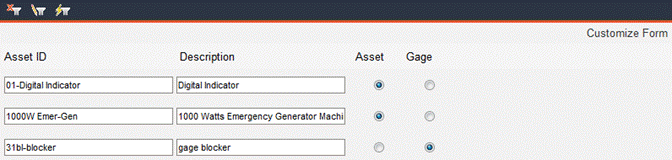
For example, as shown in the image above, record 01-Digital Indicator is currently an asset record, but should be a gage. The record’s Data Administration -> Assets -> Information tab appears as follows:
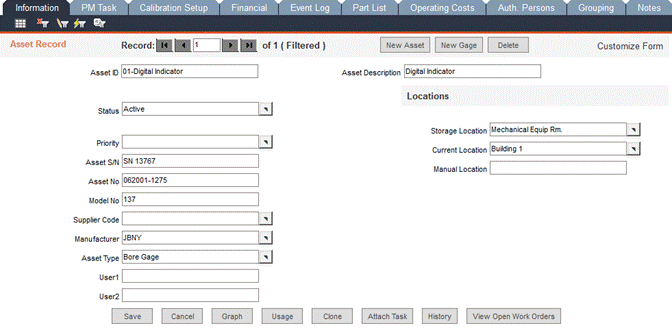
To convert it to a gage record, navigate to Data Tools -> Convert Assets/Gages, click the Gage radio button and then click Apply.
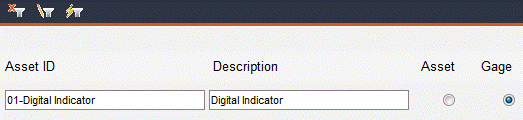
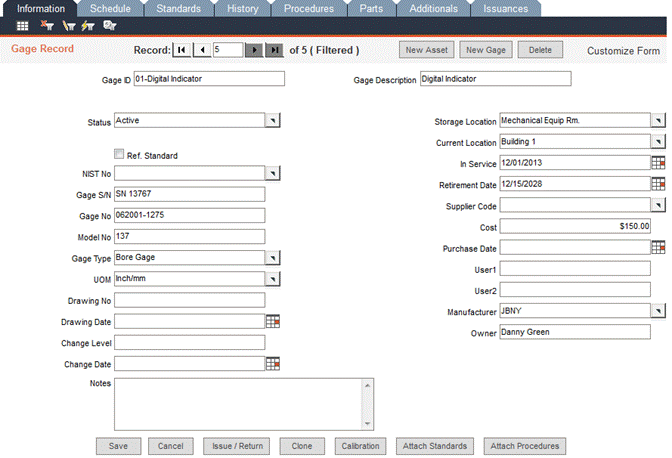
The new view of record 01-Digital Indicator would appear as follows: