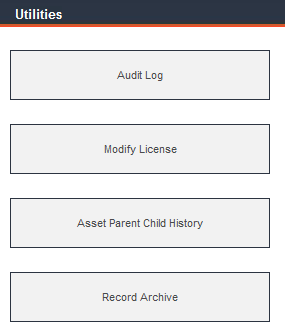
Utilities are functions that are used to maintain your FaciliWorks database. Viewing the audit log, modifying the concurrent user license and archiving records are some of the functions that can be performed from within this menu.
From the Main Menu, click Utilities.
The Audit Log is a non-editable record of database usage such as record modifications and deletions, the name of the user who performed each action and the date and time of each action. Records can be filtered using either the Quick Filter or Advanced Filter. Please see the FaciliWorks 8i User Guide for filter instructions.
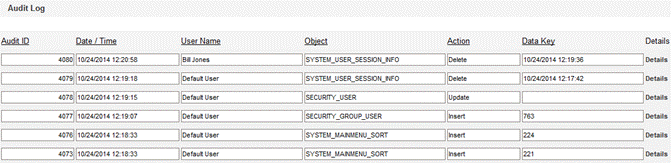
To view the old and new values of modified fields, click the Details button to the right of the associated audit record.

This function is enabled and configured from within the Configuration -> Admin Settings -> Security tab. Please see that section for more information.
Various reports can be run for the purpose of investigating the audit log - see the Reports section of the User Guide for more information.
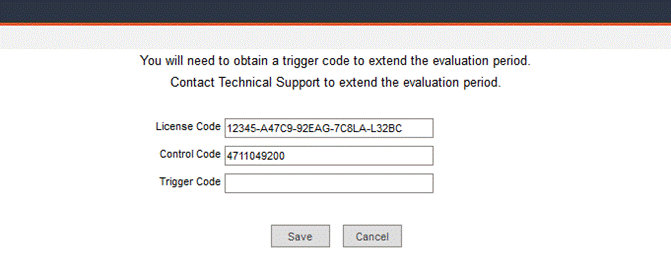
Use the Modify License screen to continue your license when your FaciliWorks 30-day evaluation period is about to expire or if you are upgrading from FaciliWorks 8i Professional to FaciliWorks 8i Enterprise.
Seven days before your evaluation period is over, FaciliWorks will display a message that this period is about to expire. (For your convenience, this period will not expire on a Saturday or a Sunday.)
To continue your license, call CyberMetrics Technical Support at 1-800-776-3090 for instructions. You will be asked to provide your current license code and control code.
This utility displays a comprehensive history of the parent-child relationships of the assets in the database.
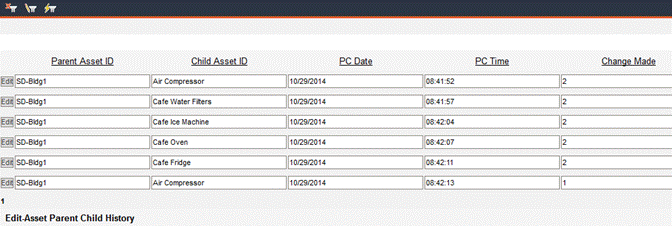
Each record lists the respective Asset IDs for both parent and child assets, the date and time a change was made to the child asset status, whether the child asset was added or removed (2 = added; 1 = removed) and the respective meter readings for both parent and child assets.
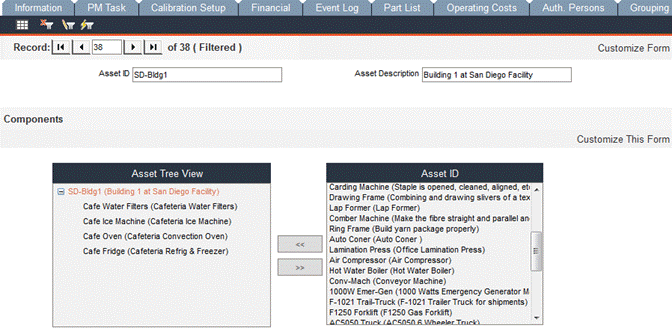
This history coincides with the Asset Tree View created on the Components tab of the Assets form.
Always make a backup copy of your database file before you archive it.
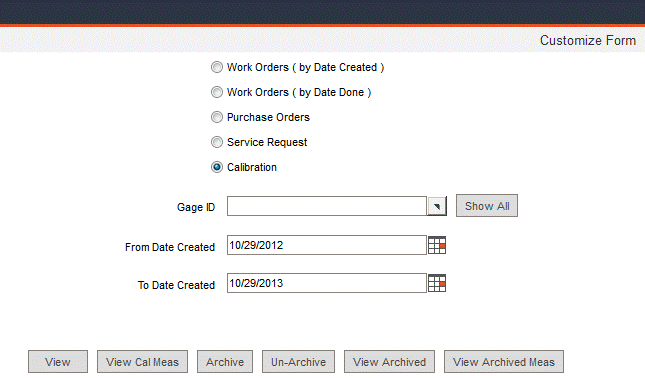
The Records Archive utility allows you to archive or un-archive your completed maintenance jobs, purchase orders and service requests, filtered by Asset ID, date created or date completed. This utility can also be run for calibrations when using FaciliWorks 8i Calibration.
Archiving will move your records from the current group of records and place them in a storage location within the database. This makes your current group of records smaller so your database will run more efficiently. An Archive is not the same as a Backup; a Backup preserves your entire database in a separate place and can be restored if your database is lost or damaged. Archived records are not accessible through forms or filters.
To archive your records, first select the record type by clicking the appropriate radio button.
To find records that pertain to a particular asset, enter the Asset ID or select one from the Asset ID pop-up list.
Enter a date range for the records you want to archive. The types of date fields will vary depending on the selected record type.
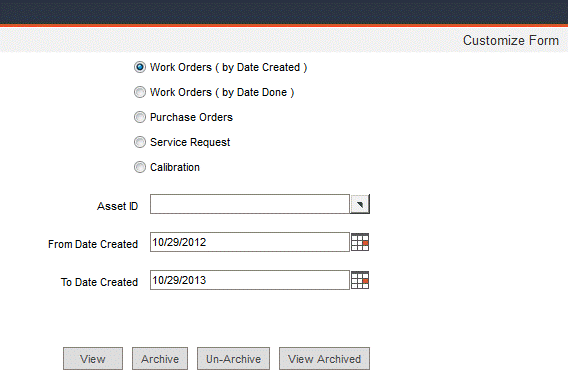
Click View to view the selected records in a separate window; close the window to return to the Records Archive screen.
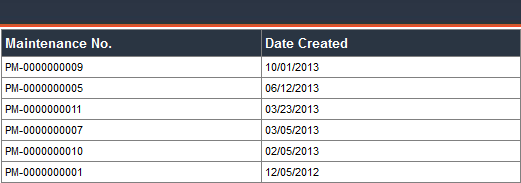
Click the Archive button to archive the selected records and a message similar to the following will appear:
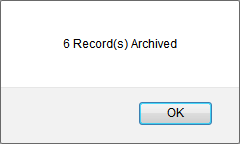
Click OK to return to the Record Archive form.
To un-archive records, enter the appropriate information in the filter fields and then click the Un-archive button.
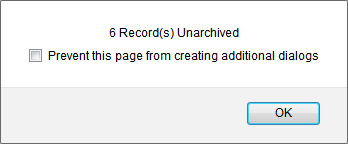
If you check the Prevent this page from creating additional dialogs checkbox, you will no longer receive archive/un-archive confirmations. Click OK to return to the Record Archive form.
For 8i Calibration, selecting Calibration as the record type will change the Asset ID field to a Gage ID field. Also specific to the Calibration record type is the View Cal Meas button. Clicking this button will display calibration measurements for each gage within the filter criteria, sorted by Gage ID.