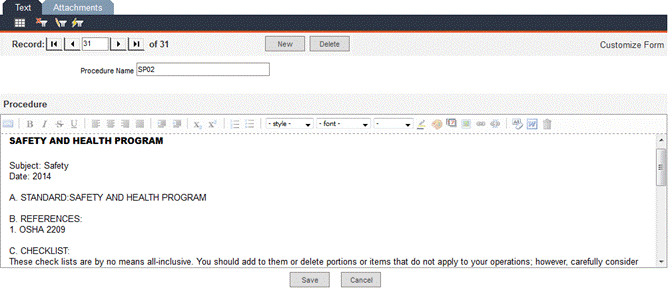
Navigate to Data Administration -> Procedures to enter procedure text and attach files to the procedures.
Click New to create a new procedure record. In the Procedure Name field, enter a unique name or ID. In the pane below, type the procedure text or copy and paste text from another document. Font sizes, weights, alignment, color, etc. can all be modified using the toolbar. Be sure to click the Save button after creating a new record.
To edit an existing record, use the record navigation bar to locate the record. Make the necessary changes and click the Save button to save the record. Editing a procedure record will affect all tasks and assets with which the procedure is associated.
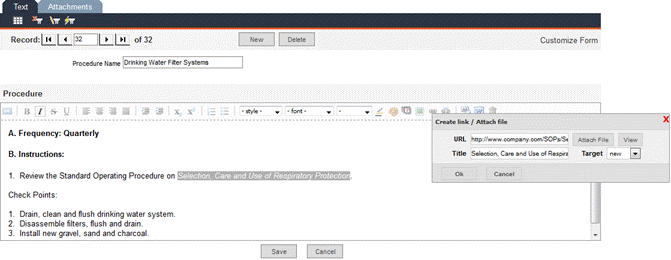
If you do not want to upload a file into the database through the Attachments tab (see Procedures - Attachments tab), you can simply point to the file; the file must be on a shared resource accessible to all users. Highlight the text in the Procedure textbox, click the Hyperlink icon and enter the URL information. When you click OK and close the Hyperlink window, the text is now underlined to indicate an active link. The link can be viewed from the Task -> Procedure tab.
Use the Attachments tab to upload files to the database to attach to the procedure. This could include images, maps, instruction documents, etc.
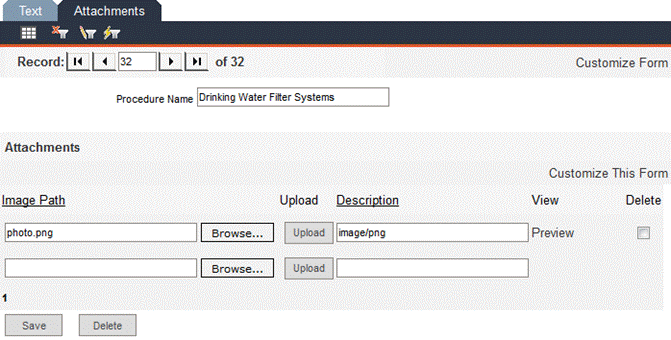
Use the record navigation bar to locate the procedure record to which you would like to attach a file. Click the Browse… button to locate the file. This will populate the Image Path field. Click the Upload button. The file will be uploaded to FaciliWorks and the Description field with be populated with the file type.
To view an attachment, click Preview (in the row associated with the attachment you would like to view).
Upon successful upload of a file, a new blank field will appear, allowing you to upload another file.
To delete an attachment, check the Delete checkbox associated with the file and click the Delete button.