Among the significant functions of FaciliWorks 8i is a feature that gives you the advantage of automatically calculating maintenance due dates. You can use this feature from within the Assets -> PM Task -> Schedule sub-tab, the Preventative Maintenance -> Edit PMs -> Schedule tab or the Work Orders -> Work Order Manager -> Schedule tab. The resulting Next Date Due values for maintenance are reflected identically in all of the said modules, as they share the same source code function.
Unlike the Preventative Maintenance and Work Orders modules, the Assets module allows easy access to the fields required in processing these date calculations (such as Maintenance Frequency, Frequency Units and Last Maintenance Date). This is the module used for the due date images in this chapter.
FaciliWorks 8i automatically calculates next due dates that fall between January 1, 100 AD and December 31, 9999 AD.
Upon completing this form, the Next Meter Due and/or the Next Date Due will automatically be calculated when the Calculate Next Meter Due or Calculate Next Date Due buttons are clicked. When these values are calculated, FaciliWorks sends a notification that a work order is to be created for this work. This action starts the continuous process for scheduled work orders. After the work order is scheduled and completed, the program will automatically send notification for the next work order to be created and the ongoing schedule is set. This schedule continues as long as the asset’s Status is Active.
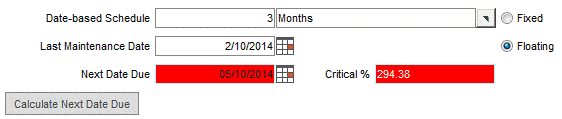
To enter a Date-based Schedule, enter a numeric value in the left-hand field and select a unit of time from the pop-up list in the right-hand field. Click the Calculate Next Date Due button. The Next Date Due will be calculated. If the maintenance is past due, the Next Date Due field will be flagged in red.
FaciliWorks 8i allows you to identify an asset’s maintenance schedule as being Fixed or Floating.
The type of maintenance schedule (Fixed or Floating) will be indicated in the date and meter schedule sections. Fixed schedules adhere to a particular date or meter value that is initially set for each maintenance due, while Floating schedules are flexible; the next date (or meter value) due is determined from the last completed maintenance date (or meter value at last maintenance).
If you want the next maintenance due date/meter to always occur on a certain day or at a certain level, regardless of when the last maintenance was performed, click the Fixed radio button. For example, if a task with a one-month frequency is due on July 1, and you perform the maintenance on July 29, a fixed schedule will set the next due date to August 1 based on the original set date.
Click the Floating radio button if you want the task’s schedule to depend on when the last maintenance was performed. For example, if a maintenance task with a one-month frequency is due on July 1, and you actually complete the task on July 29, a floating schedule will set the next due date to August 29 (one month from the last task completion).
For a six-day frequency, enter 6 in the left-hand field of Date-based Schedule and using the pop-up list in the right-hand field, select Days.
A week frequency unit equals 7 days. For a one-week frequency, enter 1 in the left-hand field of Date-based Schedule and using the pop-up list in the right-hand field, select Weeks.
A month frequency unit is not equal to 30 days. Using month frequency units sets the next date due to the same day of the month as the last maintenance date. For example, set the Date-based Schedule to 3 months and the Last Maintenance Date to 2/10/2010. Click the Calculate Next Date Due button; the Next Date Due will be calculated as 5/10/2010 and flagged in red because the maintenance is past due.
A year is not equal to 365 days because of leap years, but a year is the same as 12 months. When using year frequency units, the next date due will be set to the same day of the year as the Last Maintenance Date. But, if the last maintenance date is February 29, (a leap year) and you’ve set the Date-based Schedule to 2 years, the Next Date Due won’t be set to February 29, 2014 because that day doesn’t exist. The Next Date Due will be set to the last day of the month, February 28, 2014.
The EOM (End of Month) frequency unit sets the next date due to the last valid working day of the month, regardless of the length of the month. For example, if the Date-based Schedule is set to 3 EOM and the Last Maintenance Date is December 11, 2014, the Next Date Due will be set to March 31, 2015.
The DOM (Day of Month) frequency unit uses a user-identified, fixed day of the month. For example, if the Date-based Schedule is set to 2 DOM with a fixed day identified as 15 and the Last Maintenance Date is February 10, 2014, the Next Date Due will be set to April 15, 2014.
The Maintenance Season refers to the part of the year during which the asset is maintained and is defined by the period between the Season Start and the Last Mo. of Season. When the maintenance season is set, FaciliWorks schedules all maintenance due dates within that range of dates. The maintenance season works for all frequency units: Days, Weeks, Months, EOM and DOM. For example, use the drop-down lists to set the Season Start field to January and the Last Mo. of Season field to July. If a scheduled maintenance was conducted on July 19, 2015 and the Date-based Schedule is set to 1 Months, FaciliWorks will schedule the Next Date Due as January 19, 2016 instead of August 19, 2015, following the set maintenance season. For assets that are maintained year-round, leave the Season Start and the Last Mo. Of Season fields blank.

The Critical % is the ratio of the number of days that have elapsed since the last maintenance date to the maintenance frequency, expressed in percent form. A critical percent less than 100% means that maintenance is not currently due, 100% means it is currently due today, and a percentage greater than 100% indicates that the maintenance is overdue.
Navigate to the Data Administration -> Assets -> PM Task -> Schedule sub-tab.
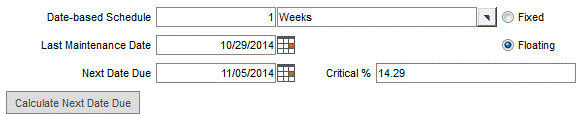
Set the Date-based Schedule to 1 Week.
Enter yesterday’s date in the Last Maintenance Date field. (If today is October 30, 2014, type 10/29/2014 in the Last Maintenance Date field. Make sure that the Season Start and Last Mo. of Season fields are blank.
Click the Calculate Next Date Due button. The Critical % field returns a value of 14.29%. The Critical % is the ratio (in this example, 1/7) of the number of days that have elapsed since the last maintenance date (in this case, equal to 1 day) to the maintenance frequency (equal to 7 days when 1 week is normalized into days), expressed in percent form (or 14.29%).
Meter-based maintenance scheduling can be used instead of or in addition to a schedule based on elapsed calendar time. With this method, FaciliWorks counts an asset's actual usage (or meter reading), not the elapsed time, in determining when an asset is due for maintenance. The Meter-based Schedule has two fields: type a numeric value in the left-hand field; use the pop-up list in the right-hand field to select the unit of measure. In the Rollover Meter Reading field, enter the meter value at which the asset’s meter will roll over to zero.
For example, enter 10000 Miles as the Meter-based Schedule. Type a value of 0 in the Meter at Last Maint field. Type 1000 in the Current Meter field. Click the Calculate Next Meter Due button. The Next Time Due will be when the meter is at 10000.
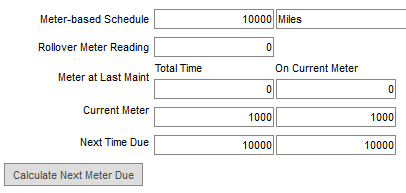
The Critical % value is the difference between the Current Meter and the Meter at Last Maint expressed as a ratio (in percent) to the Meter-based Schedule.
Navigate to the Data Administration -> Assets -> PM Task -> Schedule sub-tab.
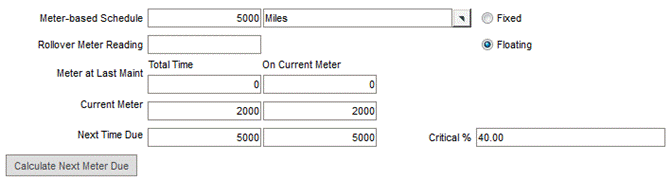
Enter 5000 Miles in the Meter-based Schedule fields. Enter 0 in the Meter at Last Maint field. Enter 2000 in the Current Meter field.
Click the Calculate Next Meter Due button. The Next Time Due field is calculated as 5000 miles. The Critical % value will be 40% (Current Meter / Next Time Due which is 2000/5000 = 40%).