As maintenance manager, you are responsible for budget and resource planning. FaciliWorks’ powerful tools help you plan ahead. To obtain a historical perspective, e.g., for the last quarter and for the same quarter in the previous year, you can print the Work Order Costs and Labor report several times, sorting by assets, tasks, locations and technicians, so that you can better analyze past use of resources.
Using the FaciliWorks Budget Allocation feature, you can check your budget for each of the three months of the last quarter and the same quarter in the previous year, comparing actual and estimated costs.
FaciliWorks flags over-budget months so that you can easily recognize them. You must have rights to the Budget feature in order to use it. For information regarding user permissions, please see the Administrator Guide.
Set up a separate budget for each of your cost centers. Then, to compare costs, select or enter the cost center and year for which you wish to see data. After you edit the estimated costs for a cost center, use the Refresh button to recalculate the difference between estimated and actual costs. Whenever the actual cost exceeds the estimated cost, the program will flag the month as over budget.
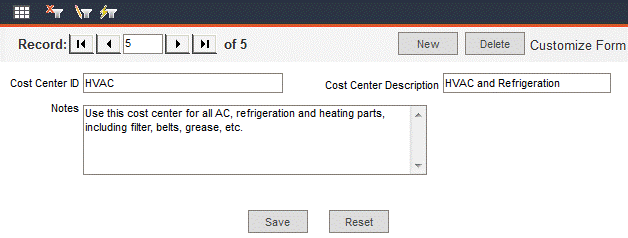
To begin, you must first set up your cost centers. Navigate to Configuration -> Cost Center Entry. To create a new record, click the New button. Enter data as described:
Cost Center ID: Enter a unique identifier for your cost center. Use only letters and numbers, no special characters.
Cost Center Description: Enter a description of your cost center.
Notes: Enter any clarifying or descriptive notes about the cost center.
Once you have created your cost center, you can specify the budget allocation.
Navigate to Data Administration -> Budget Entry. To create a new record, click the New button. Use the Cost Center pop-up list to select a cost center. In the Year field, type in the budget year.
Next, enter the estimated costs for each month in the Budget column. FaciliWorks 8i will keep a running total. Click the Save button to maintain your entries.
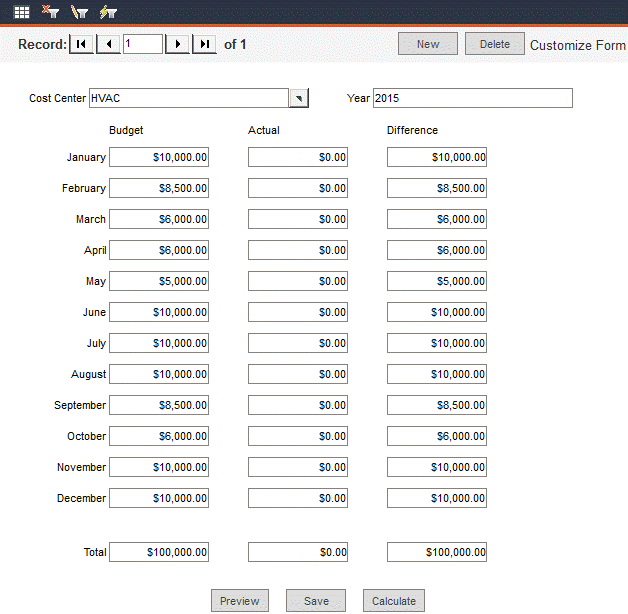
As PMs and work orders are completed, you can specify a cost center to allocate the costs for labor, contractors, parts and/or the overall PM or work order. A cost center can also be specified on the Financial tab of Asset Entry and when adding new quantities to your parts records. As costs are recorded in these areas, FaciliWorks will add the costs to the Actual column for the specified month and calculate the Difference between estimated and actual costs.
In a new work order, costs are specified for labor and parts and fully assigned to the HVAC cost center and allocated to the HVAC budget for the month of January. To see the allocation, navigate to the budget for HVAC. The Actual and Difference columns have been updated to reflect the costs represented by the completed work order.
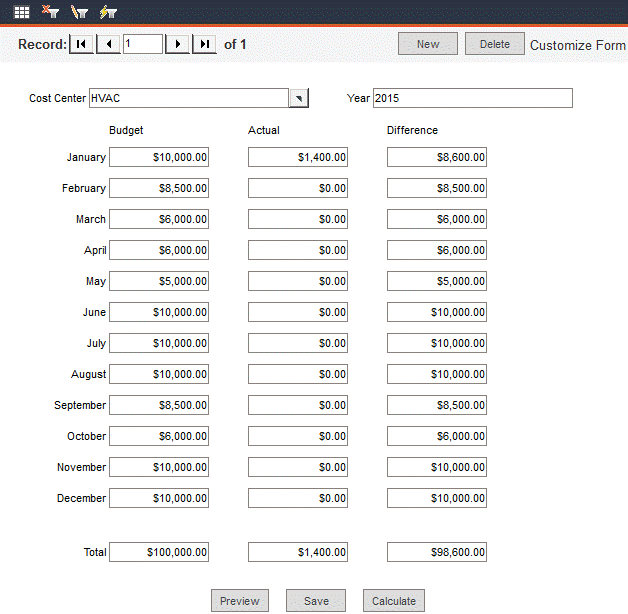
To view the report, click the Preview button. If you need to modify the estimated budget allocation, make the change in the Budget column and then click the Calculate button to recalculate the Difference. Save the changes.
Navigate to Data Administration -> Budget Entry with Components. This form contains all of the information from the Budget Allocation form, but also includes attached components in the budget computation, even if the related components are not members of the current cost center.