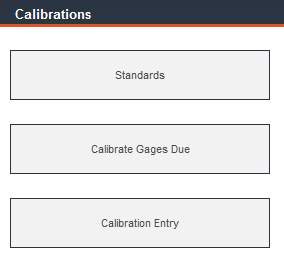
From the Main Menu, click Calibrations.
From the main menu, navigate to Calibrations -> Standards. Within this section, define gage standards (test parameters or checkpoints) and specify the gages to which those checkpoints apply.
This form is the data entry point for gage standards. The data entered here is the basis of the Standards tab within Gage Entry.
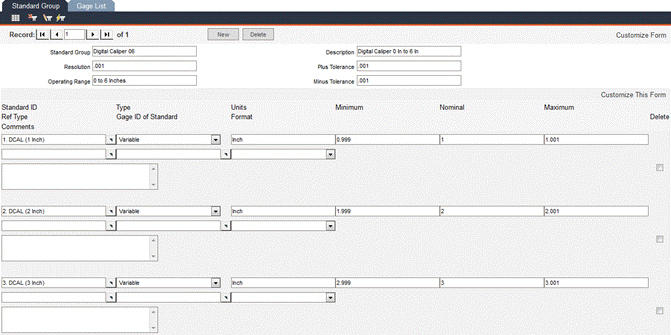
To enter a new standard group record, click the New button.
Standard Group: Enter a unique alphanumeric name for the standard group you wish to define.
Description: Enter a description of the group.
Resolution: Enter the resolution of the gage(s) to which this standard will apply. This is the smallest (or least count) unit of motion that the gage is capable of measuring and displaying.
Operating Range: Enter the operation range for this gage(s) to which this standard will apply.
Plus Tolerance: Enter the plus tolerance for this standard group.
Minus Tolerance: Enter the minus tolerance for this standard group.
Click Save to save the data you’ve entered so far. Saving the record at this time activates the Prefill button.
Save: Click this button and any gage associated with this standard group will be updated to the newly defined standard. Clicking the Save button will reset current standards, but will not affect standard history.
All criteria related to developing standards are the same as what is documented for Measurements in Calibration Entry.
Use this function to save time when you have multiple calibration standards and their nominal values are evenly spaced (for example, if you have a group of standards with the values 1, 2, 3, 4, 5 and 6). Click the Prefill button.
Standard Group: The name of the selected group will appear in this field.
Number of Standards: In this field, enter the number of standards you would like to prefill.
Start Value: Enter the smallest nominal value for the similar standards.
Increment Value: Enter the difference between the sizes of the nominal values of the standards, such as .5 or .005, in this field.
Standard Names: Enter the portion of the standard name that will remain static for all standards being prefilled. For example, enter 6 as your Number of Standards and 1 as the Start Value. Enter an Increment Value of 1 and Inch as the Unit (of measure). If you enter Gage Block as the Standard Names value, the resulting names for your standards will be:
1. Gage Block (1 Inch)
2. Gage Block (2 Inch)
3. Gage Block (3 Inch), etc.
If the number of standards is between one and nine, the Standard ID names will be numbered as shown above. However, for ten to 99 standards, the numerical value preceding the name will be shown as two digits, i.e., 01. Gage Block (1 Inch).
Type: Select the type of standard: Variable (V) or Attribute (A). Select Variable for those standards that have a value that you actually measure (such as 0.502 inches). Select Attribute for pass/fail or visual types of checks.
Ref Type: Select the type of Reference Standard that will be used for this standard. The pop-up list will show the Gage Type of every reference standard in the database.
Gage ID of Standard: Select from a list of available Gage IDs of standards. The list is limited by the Ref Type field. An empty Ref Type field would show all available Gage IDs.
Units: In this field, enter the unit of measure that the standards share.
Standard Format: Select the numerical format that measurements will appear in on reports. The format does not affect how measurements are shown in forms, only in reports.
End Value: FaciliWorks calculates the end value for you, depending on the Number of Standards, the Start Value and the Increment Value.
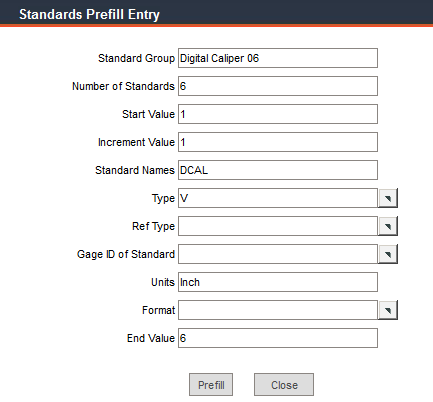
After you’ve entered the information, click the Fill button and a confirmation message will be displayed. Click OK and the standard group fields will be populated per the specifications.
Access this tab to see a listing of all gages that use the selected standard group and thus will be affected if you modify the standard group. This list is read-only.
Navigate to Calibrations -> Calibrate Gages Due. When a gage is due for calibration, it appears in this list. If the gage is past due for calibration, the Due Date field will be flagged in red.

To select a single record for calibration, click the associated Calibrate button on the right. To select more than one record at a time, check the checkboxes to the right of the records and then click the Calibrate Selected button. This action will direct you to the Calibration Entry -> Calibration tab which will display all information associated with the gage that requires calibration.
Use Calibration Entry to enter or modify calibration records after a calibration has been performed. In addition to creating a calibration record via Calibrate Gages Due as previously shown, there are two other ways to enter the Calibration Entry window:
Via the Gage Entry -> Information tab -> Calibration button: Calibration Entry can be accessed by clicking on the Calibration button within the Gage Entry -> Information tab. If a calibration record already exists, you will be directed to the record within Calibration Entry. If no calibration record exists, you will be alerted as such and prompted to create one. In the prompt, click Yes and the Calibration Entry window will open.
Via the Main Menu -> Calibrations -> Calibration Entry: From the Main Menu, navigate to the Calibrations -> Calibration Entry -> Calibration tab. To create a new calibration record, click the New button and then select the desired gage record from the Gage ID pop-up list. After you enter information into this screen and save the record, FaciliWorks automatically retrieves any standards specified for the gage within Gage Entry.
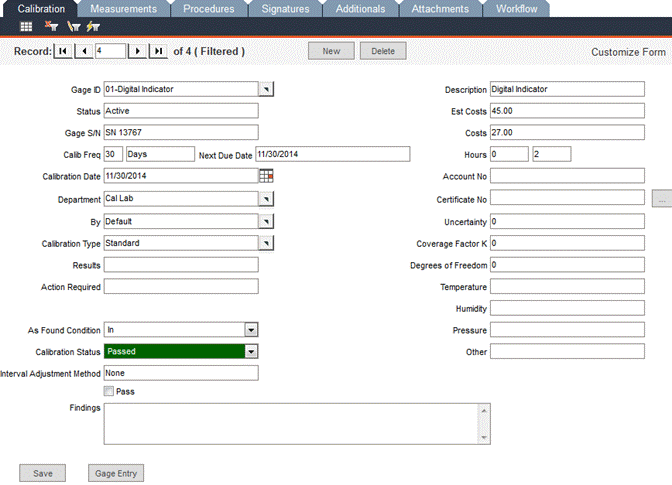
Gage ID: If you are creating a new calibration record, use the pop-up list to select a Gage ID; otherwise, this field already contains the Gage ID of the selected gage. Once you’ve selected a gage to calibrate, do not change this field. After you save the calibration record, you cannot edit this field. If you want to enter another calibration record for this gage or for another gage, click the New button.
Description: FaciliWorks auto-fills the gage’s description from its Gage Entry record and displays it here. This field is not editable.
Status: Indicate the status of the gage at the time of calibration.
Gage S/N: This field displays the gage’s serial number as entered within Gage Entry and is not editable in this window.
Calib Freq: This field is automatically populated with the gage’s calibration frequency entered within Gage Entry. You can edit this value in Gage Entry. Calibration frequencies are stored with calibration records. This allows you to maintain a complete history of calibration frequencies and how they might change over time.
Next Due Date: This field stores the next due date for calibration, based on the calibration frequency. You must check the Pass checkbox in order for FaciliWorks to show the next due date. If a gage has a calibration frequency of Usage or Cycles and the gage is not past due for calibration, you will not be presented with a Next Due Date; this field will remain blank until the gage needs to be calibrated.
Calibration Date: Use this field to store the date of the calibration - it is set to the current date by default. Changes can be made until the calibration record is saved.
Department: In this field, select or enter the name of the department that used the gage before calibration.
By: Select or enter the name of the calibrator. This field automatically displays the name of the current user, but it can be modified.
Calibration Type: In this field, enter the type of work being performed, such as calibration, repair or rebuild.
As Found Condition: Choose the condition of the gage before calibration or adjustment. Select In for in-tolerance, Out for out-of-tolerance or New for a new instrument that has not been calibrated before. Prior to calibration, all test points of the instrument must be within tolerance to have the As Found Condition field set to In.
Est Costs: Projected calibration cost.
Cost: To track your costs, enter any expenses related to this calibration (such as internal labor/material costs or outside calibration service costs).
Hours: There are two fields for hours: The right-hand field will display the estimated hours that you entered for this gage in Gage Entry. The left-hand field is for the actual number of hours for this particular calibration.
Account No: Enter an account number or other tracking number associated with the cost (examples include a job, purchase order, invoice or customer number).
Calibration Status: Select the final calibration status: Passed, Failed, Repaired or Limited. NOTE Passed is the default value.
Interval Adjustment Method: This non-editable field is based on the Gage Frequency Adjusting Interval selection made for this record in the Gage Entry -> Schedule tab. This feature will be active in a future phase of FaciliWorks.
Results: Enter any results or comments (typically used for attribute-type gaging or dimensional layouts). Enter calibration measurements into the Measurements table (see below).
Action Required: Enter any action that may be required, such as “send out for repair.”
Pass: You must check this checkbox in order for the program to automatically calculate the next calibration due date (Calibration Frequency + Calibration Date).
Findings: Use this memo field to describe any other pertinent information, such as visual inspection notes. You can scroll through this field if you need more room for text. Your certificates of calibration will include this field.
Certificate No: Record the certificate number issued by the outside calibration provider or your company.
Uncertainty: This field is for the uncertainty sum, input by user.
Coverage Factor K: This multiplier is used to convert Combined Uncertainty to Expanded Uncertainty.
Degrees of Freedom: This is also called Effective Degrees of Freedom. This value will appear on the Certificates of Calibration and on Failure Notice reports.
Temperature, Humidity, Pressure and Other: Enter the relevant environmental conditions for the calibration: humidity, temperature, pressure or any other factor that may affect results.
Select Label Design: Choose the label design to print out the calibration record.
Certificate button: If a calibration has been passed, select this button to view the Certificate of Calibration. If the calibration has failed, you will be notified as such and will be given the opportunity to print a Calibration Failure Notice.
Gage Entry button: Click this button to view the Gage Entry record for the current gage.
Calibration Entry - Measurements Tab
Use this screen to compare before and after measurements of the gage with the standards used in calibration. If standards were specified within the gage record, those standards will populate this screen.
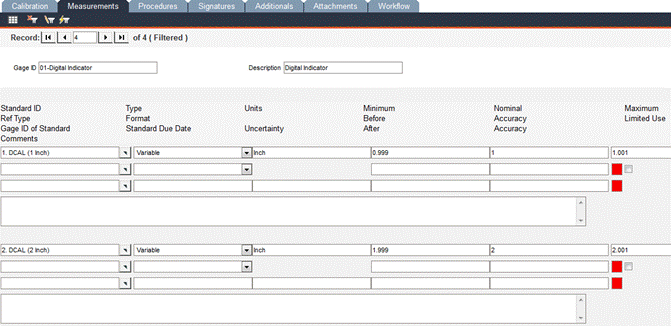
Enter the before and after measurements in the Before and After fields and click Save. If the measurement is within tolerance, the corresponding red box will remain empty. If the measurement is out of tolerance, a white X will appear in the red box.
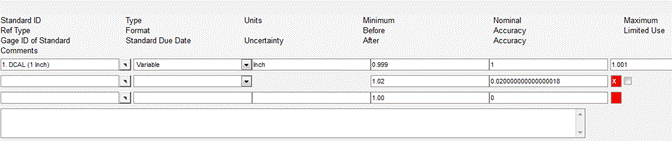
FaciliWorks calculates the accuracy of Before and After measurements. Accuracy is the difference between the before- or after-measurement value and the Nominal value. Thus, Accuracy can either be positive (when the Nominal value is smaller) or negative (when the Nominal value is greater).
In the image above, the Before Accuracy field shows a positive out-of-tolerance condition; the After Accuracy is within tolerance..
The fields within this form are explained here; most fields are automatically populated with information from the gage entry record.
Standard ID: FaciliWorks copies the Standard IDs from the gage record.
Type: Two types of calibration standards are available: V (Variable) or A (Attribute). Select Variable for those standards that have a value that you actually measure (such as 0.502 inches). Select Attribute for pass/fail or visual types of checks. Selecting Attribute does not calculate accuracy of particular standard. FaciliWorks copies it from the gage record or you can select it here.
Units: The program copies the unit of measure from the gage record.
Minimum, Nominal and Maximum: FaciliWorks copies the gage’s Minimum, Nominal and Maximum values from the gage record.
Ref Type: Enter the type of the reference standard being used or the specific type of the reference gage.
Format: Specify the format for the numeric display.
Before: Enter the measurement observed before you adjust the gage.
After: Enter the measurement observed after you adjust the gage.
Accuracy (Before): This field shows the accuracy value based on the before measurement (Before minus Nominal).
Accuracy (After): In this field, you’ll see the accuracy value based on the after measurement (After minus Nominal).
Limited Use: Based on the gage’s accuracy compared to its calibration standard, check this checkbox to restrict the gage to limited use, meaning that it shouldn’t be used for measurement of this particular range.
Gage ID of Standard: This field stores the Gage ID of the reference standard which is important for traceability back to a specific standard. You can manually enter the standard’s Gage ID or use the pop-up list to select a standard. The pop-up list contains only gages that match the following two criteria:
The gage must be marked as a reference standard (i.e., the Ref. Standard checkbox on the Gage Entry -> Information tab must be checked).
The Reference Standard must not have a Due Date or Next Date Due.
Standard Due Date: This field displays the next date due per the calibration schedule.
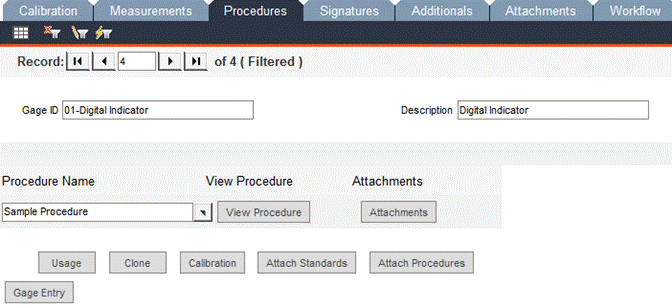
In this screen, you can view any calibration procedures that are attached to the gage record by clicking View Procedure. Procedures cannot be edited here. To enter or edit procedure text, navigate to Data Administration -> Procedures.
To view attachments, click Attachments. Any modifications (additions/deletions) made to the attachments here affect the original gage record.
If your system administrator has enabled security, calibrations can be electronically signed or unsigned.
To attach your electronic signature to a complete calibration record, click the Sign button in the Done By pane; the Sign In form will open. Enter your User ID and Password and click OK. This action attaches your electronic signature and the button previously labeled as Sign is now labeled as Unsign.
Use the same steps to attach an electronic signature in the Approved By pane.
If a signature has been attached to the approval, the Approved By record must be unsigned before the Done By record can be unsigned (the Unsign button in the Done By pane will be inactive until the approval has been unsigned).
To unsign a record, click Unsign. The Sign In form will open. Enter your User ID and Password and click OK. A Comments box opens, giving you the opportunity to enter any necessary notes. If you enter notes here, click Save to save the notes and complete the unsigning. If you do not want to enter any notes, you can click Cancel to close the Comments box and complete the unsigning.
FaciliWorks will show the electronic signature details of each signing and unsigning of the record.
A record can only be unsigned by the user who signed it.
When the electronic signature feature is disabled, the signature name fields will auto-fill with the current user.
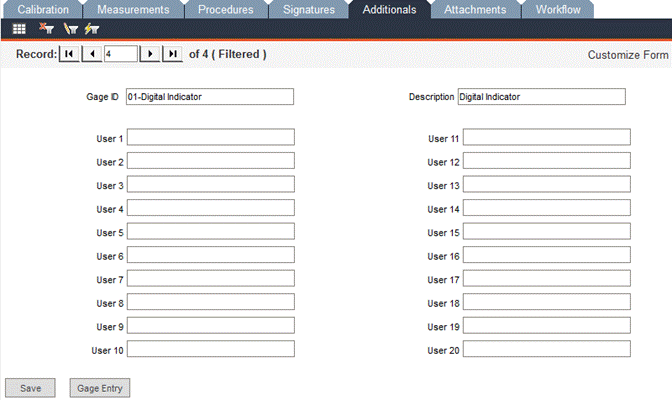
The fields in this screen can be used to store additional user-defined information and can be customized: the label names can be changed and the data types can be altered. Please the FaciliWorks Administrator Guide for more information about how to change data types. To change field label names, click the Customize Form link. In the ensuing pop-up window, overwrite the contents of the Label Text field with your desired field name. Click Save and the pop-up form will close. Your changes will be reflected in the Additionals tab.
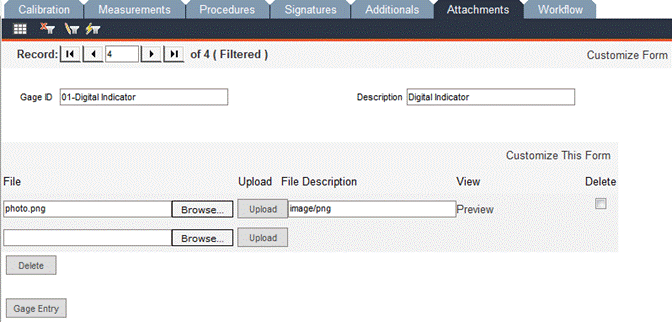
Calibration Entry - Attachments Tab
Use this screen to attach files to the calibration record, i.e., text documents, images, certificates, etc. Click Browse… to locate the file you would like to attach, click the Upload button. When the upload is complete, the File Description field will be auto-filled with the file type. Upon successful upload, a new blank field appears, allowing you to attach another file. Be sure to click Save after any modifications. To view the file, click Preview and the attachment will open in a new window.
While the actual steps and triggers are defined in Workflow Trigger Setup and Workflow Step Setup, this tab shows the history of the actions and approvals implemented upon calibration records. For more information about Workflow Trigger Setup and Workflow Step Setup, please see the FaciliWorks Administrator Guide.