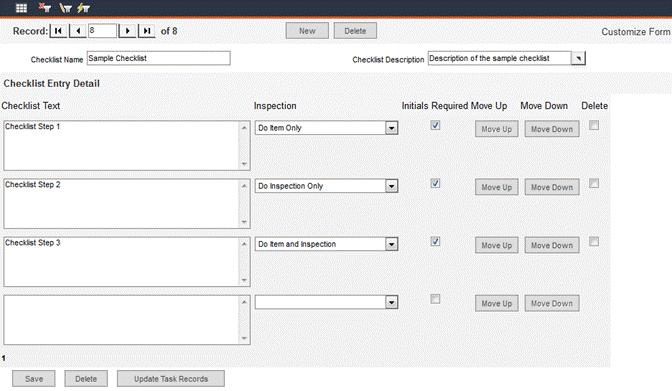
Checklists document specific steps that need to be verified or inspected during the course of a task. A checklist record must be entered here before it can be assigned to a task. Navigate to Data Administration -> Checklists.
To create a new checklist, click the New button.
Enter a unique Checklist Name.
Enter a unique Checklist Description or choose an existing description from the pop-up list.
Enter a description of the step in the Checklist Text field.
Use the Inspection drop-down list to select Do Item Only, Do Inspection Only or Do Item and Inspection. This identifies for the technician performing the step which checkbox to check on the PM or WO.
If the technician performing the task must sign off on a checklist item, check the Initials Required checkbox. This will require the currently logged-in user to submit a user name and password for verification before a checklist can be marked as completed.
If a checklist contains more than one step, the steps can be re-ordered. Use the Move Up or Move Down buttons associated with a step to move the step up or down in the list.
To delete a step from the list, click the Delete checkbox associated with that step and click the Delete button at the bottom of the form.
To delete an entire checklist record, click the Delete button at the top of the form.
To save a checklist record, click the Save button.
When editing a checklist that has already been linked to one or more tasks, you may want to update associate task records to reflect the updated checklist. First, use the record navigation bar to locate the checklist you want to change. Make changes as needed. Click Save to save your changes.
To update the checklist in associated task records, click the Save button and the following will appear below the checklist record:

Click the appropriate radio button for the kind of update you would like to perform. You can update the checklist in associated Tasks, in Tasks associated with Assets or both. After making a selection, click the Save button in the Update Checklist pane. Click Cancel to revoke any updates.