Within an asset record, you can enter or edit tasks that are associated exclusively with that asset. These tasks will not be available to any other asset in your database. However, you can independently create and modify tasks in Data Administration -> Tasks and any task that you enter in this location will be available for any asset. Once you associate the task with an asset, the task can be modified specifically for that asset without modifying the original task record. This feature allows you to more generally define a task for several assets and modify it slightly for each asset; otherwise, you would need to specifically define several tasks, one for each asset. We highly recommend that you always enter tasks here in Data Administration -> Tasks in order to reuse tasks and for reporting purposes. The task entry tabs are similar to the Assets -> PM Task sub-tabs.
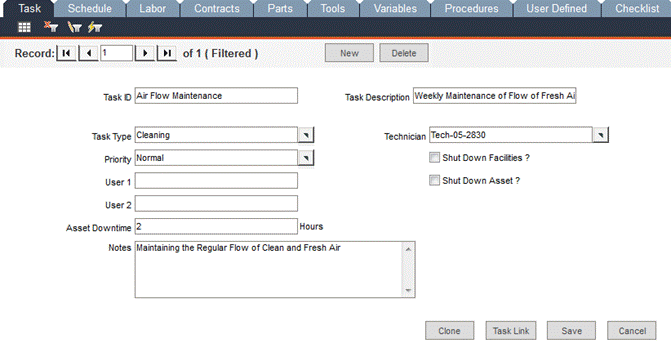
In this screen, enter general information about the task.
Task ID: Create a new task by entering a unique Task ID.
Task Description: Note that this field can be edited here in the Tasks -> Task tab and in the Assets -> PM Task -> Task sub-tab; otherwise, this field is read-only.
Task Type: Enter a new task type or use the pop-up list to select an existing task type. If you enter a task type that is currently not in the pop-up list, FaciliWorks will ask if you want to include your new entry in the list. If you select OK, the item will be in the list the next time you use the pop-up.
Technician: Select a technician from the list of active employees.
Priority: Assign a priority to the task (optional). This entry can consist of numbers, characters or a combination of both.
User 1 and User 2: Use these two fields to store additional information about the task.
Shut Down Asset? Check this box if the task requires the asset to be shut down.
Shut Down Facilities? Check this box if the task requires the facility to be shut down.
Asset Downtime: Enter the estimated number of hours the asset will be unavailable while performing the task.
Notes: Enter any special information regarding this task.
Clone Button: Cloning a task record duplicates the main task record as well as all corresponding data from the associated tabs. Clicking the Clone button will open a Clone Task window. The original Task ID will be noted. Enter a New Task ID for the clone and click the Clone button.
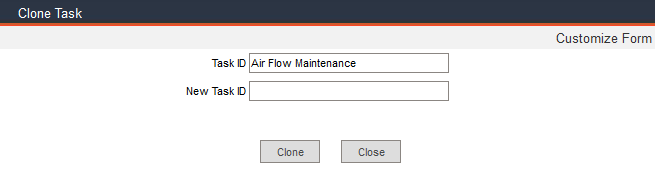
The task has been cloned successfully. Click Close. The screen refreshes to display your newly cloned record. Access the associated tabs; all data has been copied from the original task.
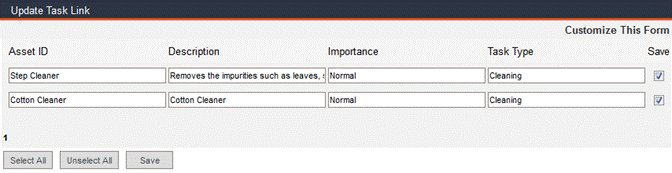
Task Link Button: If you make changes to a task record (here within Data Administration -> Tasks), you can automatically update the records for any and all assets that are currently associated with this task. Click the Task Link button. The Update Task Link window appears and lists the assets to which this task is linked. Check the Save checkbox that corresponds to each asset record that you want to update or click Select All to select all of the records. Click Save. FaciliWorks will automatically update the selected asset records with the revised task information.
Save Button: Save the changes made to the record.
Cancel Button: Click Cancel to discard any changes you’ve made.
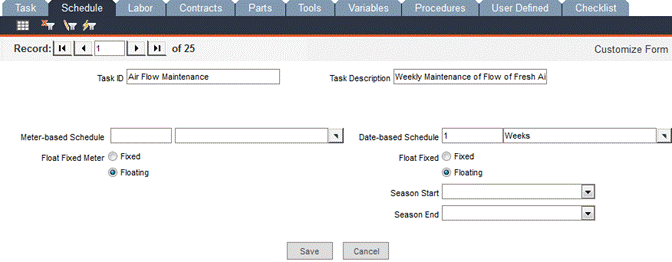
Enter information on how often your staff should perform this task. To schedule an actual date, the task must first be associated with an asset. A task schedule can be a meter-based schedule or a date-based schedule or both. A meter-based schedule will be used if a task for an asset will be scheduled on specific usage or meter reading. A date-based schedule will be used if a task is scheduled on calendar dates or intervals. If both types of schedules are used, FaciliWorks will display the task as due when one schedule reaches a Critical value of 100%.
Please see the Maintenance Due Dates chapter for detailed information about schedules.
In this screen, you can select from active employees to assign one or more of them to the task. You can change the employee assigned to the task, the craft code or the estimated hours in this screen.
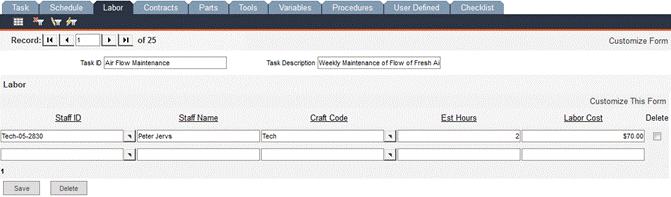
Staff ID: Use the pop-up list to select an active employee. This list draws from the active staff entry records.
Staff Name: When you select the Staff ID, this field is auto-filled.
Craft Code: Enter the employee’s union affiliation, department or classification if this field did not auto-fill.
Est Hours: Estimate the number of hours this task should require.
Labor Cost: FaciliWorks automatically calculates the labor cost as the estimated hours multiplied by the employee’s rate. This field value is not editable.
Delete checkbox and Delete button: To delete a line item, check the corresponding Delete checkbox and click the Delete button.
Save: Save the changes made to the record.
In this screen, you can enter any contract information that applies to this task.
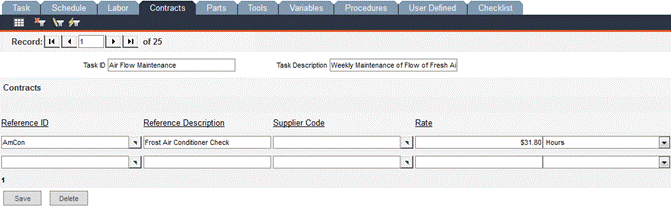
Reference ID: Enter a unique alphanumeric identification code for each contract. If you choose a Reference ID from the pop-up list, the Reference Description and Supplier Code fields will be auto-filled.
Reference Description: Enter a brief description of the services or asset that the contract provides.
Supplier Code: The name of the contract supplier appears in this field.
Rate: Enter the dollar amount for the contract in the left-hand field and the unit of time in the right-hand field, i.e., $20.00/Hour, $500/Day or $0.25/Mile.
Total Time: Enter the amount of time required in the left-hand field and the unit of time in the right-hand field.
Rate Cost: FaciliWorks automatically calculates and displays the estimated cost as the Total Time multiplied by the Rate.
Lead Time: Enter the current lead time for the asset or service, such as 4 Hours or 2 Days. The numeric value is entered into the left-hand field; the unit of time can be selected from the drop-down list in the right-hand field.
Delete checkbox and Delete button: To delete a line item, check the corresponding Delete checkbox and click the Delete button.
Save: Save the changes made to the record.
Part records must be entered in Inventory -> Part Entry before they can be assigned to a task. Please see the Part Entry section of the Inventory chapter for instructions.
In the form below, when you choose a Part No. from the pop-up list, the remaining fields in the row will auto-fill with the information entered in Part Entry; these fields are not editable here.
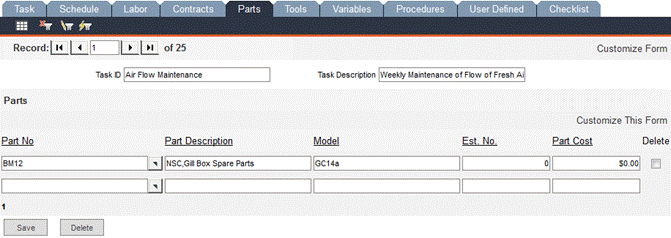
Delete checkbox and Delete button: To delete a line item, check the corresponding Delete checkbox and click the Delete button.
Save: Save the changes made to the record.
Tool records must be entered in Tools -> Tool Entry before they can be assigned to a task. Please see the Tool Entry section of the Tool Records chapter for instructions.
In the form below, when you choose a Tool ID from the pop-up list, the remaining fields in the row will auto-fill with the information entered in Tool Entry; these fields are not editable here.
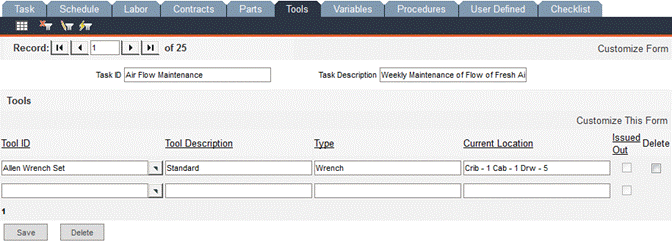
If a tool has been issued out from within Tools -> Issue Tools, the Issued Out checkbox in this form will be checked (this cannot be edited in this screen).
Delete checkbox and Delete button: To delete a line item, check the corresponding Delete checkbox and click the Delete button.
Save: Save the changes made to the record.
Variable records must be entered in Data Administration -> Variable Data before they can be assigned to a task. For more information about variables, please see Variable Data.
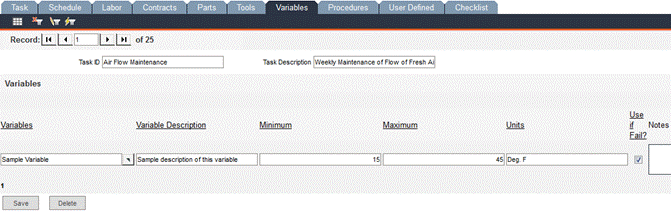
Variables: When you select the name of the variable (from the pop-up list) that the technician must check, the remaining fields will auto-fill using information that was entered via Data Administration -> Variable Data. All fields can be modified here (except the variable name); these modifications are not universal; they are specific only to the active task.
Delete checkbox and Delete button: To delete a line item, check the corresponding Delete checkbox and click the Delete button.
Save: Save the changes made to the record.
In this screen, you can select (from the pop-up list) one or more previously entered procedures to apply to the task. Procedure records are entered from within Data Administration -> Procedures.
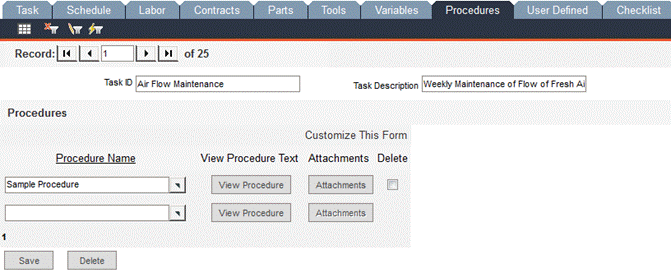
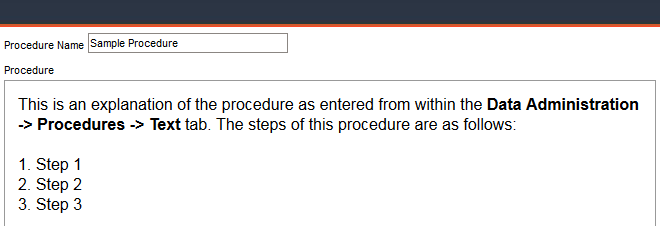
To view the details of a procedure (in a separate window or in a new browser tab), click the corresponding View Procedure button. Close this window to return to the Procedures tab.
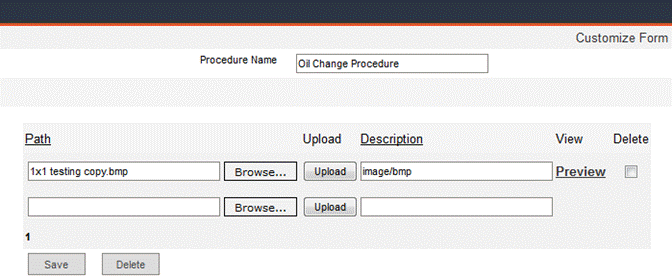
To attach a document to a procedure, click the associated Attachments button and browse to the file you would like to attach, and then click the Upload button. When the upload is complete, the Description field will be auto-filled. When you are finished, click the Save button and close the Attachments window.
If the procedure record (as entered from within Data Administration -> Procedures) has an attachment, that file will be shown here.
Delete checkbox and Delete button: To delete a line item, check the corresponding Delete checkbox and click the Delete button.
Save: Save the changes made to the record.
This screen is available for any data that does not belong in any of the predefined fields in the other screens of Task Entry.
The field types (i.e., text field, date field or pop-up list) are edited within the Configuration -> Admin Settings -> Interface -> Task Custom sub-tab. Please see the FaciliWorks Administrator Guide for detailed information about Admin Settings.
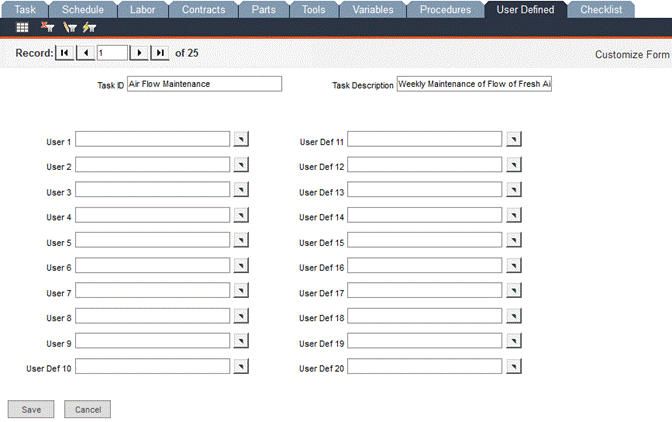
Click Customize Form to change the names of the fields. In the Label Text field, overwrite the default text with a new, customized field name. Scroll down to the bottom of the form and click Save; close the window. Refresh the User Defined tab by clicking the Save button and the new field name will be displayed.
A checklist is a user-defined set of steps that must be checked to complete a task. You must enter a checklist record in Data Administration -> Checklists before it can be assigned to a task record in the Tasks -> Checklist tab. A checklist assigned to a particular task can be edited in the Tasks -> Checklist tab, but changes made here will not affect the checklist anywhere else it appears. If you wish to change a checklist globally, you must edit it from within Data Administration -> Checklists.
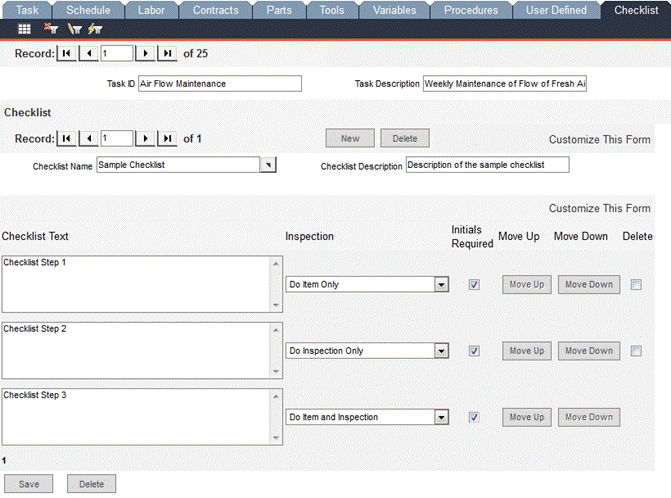
Checklist Name: This field shows the name of the current checklist.
Checklist Description: This field shows the description of the current checklist.
Checklist Text: Enter text for the checklist step and then click the Save button; as you do, a blank record for a second checklist step will appear below it.
Inspection: Choose Do Item Only, Do Inspection Only, or Do Item and Inspection from the drop-down list. This identifies for the technician performing the step which checkbox to check on the PM or WO.
Initials Required: Check this box to require an electronic signature on this checklist item before a work order containing this checklist can be completed.
Move Up and Move Down buttons: Click on these buttons to move the checklist step up or down (change the sort order) in the checklist as required.
Delete checkbox and Delete button: To delete a line item, check the corresponding Delete checkbox and click the Delete button.
Save: Save the changes made to a checklist record.