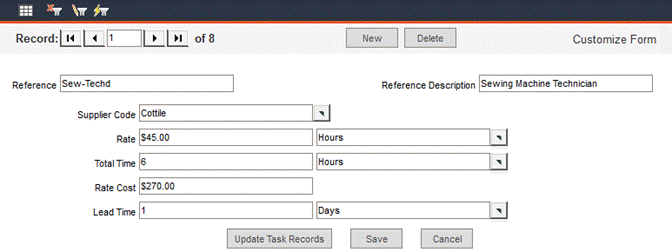
Navigate to Data Administration -> Contractors to enter contractor records.
Click the New button to create a new record. In the Reference field, enter a unique Reference ID for the contractor. In the Reference Description field, enter a description of the service the contractor provides.
If the contractor is used for multiple contract jobs, complete a contract record for each type of work performed. For example, Ed Jones, a general contractor, may be required for both electrical and general fix-up work with different rates. Two unique records for Ed Jones must be created.
Use the Supplier Code pop-up list to select the name of the supplier who provides the service. This assumes that the supplier records have already been entered. If not, the Supplier Code can be chosen later. A supplier is any company or person who provides goods or services. If the supplier provides goods, the supplier’s information is used in inventory and purchase orders; if the supplier provides a service, the supplier’s information is used here in contractor records.
When the Supplier Code is chosen in the contractor record, the contract information populates the Contracts tab within Data Administration -> Suppliers.
In the Rate field, enter a dollar amount in the left-hand field and use the pop-up list in the right-hand field to select the unit on which the rate is based; for instance, $250.00/day.
In the Total Time field, enter the estimated amount of time the services will be needed.
The Rate Cost field will be automatically calculated with the product of the Rate and Total Time.
In the left-hand Lead Time field, enter a numeric value; in the right-hand field, use the pop-up list to select the unit of measure. This is the amount of notice the contractor needs before beginning a project.
If you edit an existing contractor record, click Save to save the changes. This revised contractor record will only appear in its revised form when applied to tasks from this point on.
In order to update the contractor record in all past task records, click the Update Task Records button. When this button is clicked, option buttons appear beneath it:
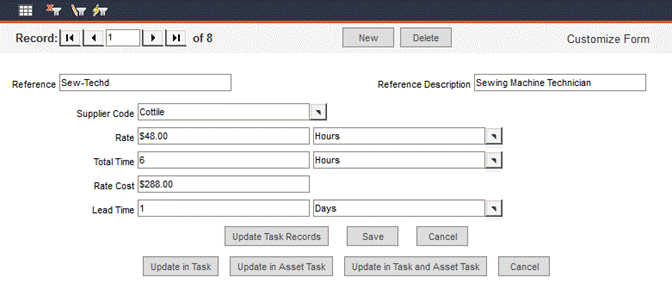
The options are:
Update in Task
Update in Asset Task
Update in Task and Asset Task
Click the button appropriate for the type(s) of records you would like to update. Be sure about your selection; there is no message given to confirm the action.
If you mistakenly updated records, for example, you clicked Update in Task and Asset Task, but you intended to only Update in Task, edit the fields to return them to their previous values, and then click Update in Task and Asset Task. This will change the records back to their original state, prior to the mistake. From there, you can make the intended edits and click the correct update button.