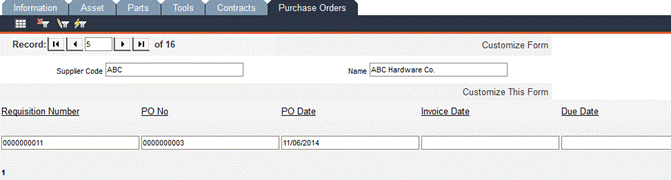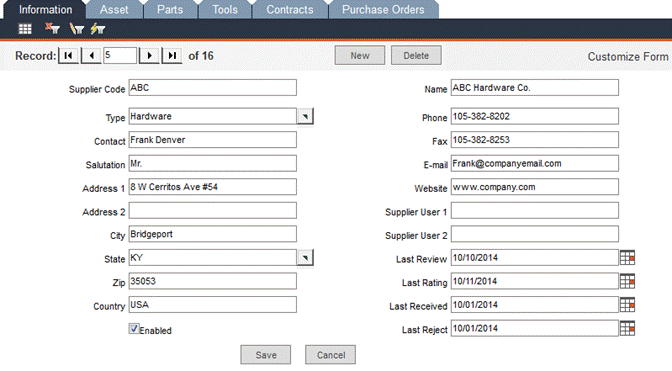
To enter detailed records of your suppliers for the products or services you purchase from them, navigate to Data Administration -> Suppliers. A supplier is any company or person who provides goods or services. If the supplier provides goods, the supplier’s information is used in inventory and purchase orders; if the supplier provides a service, the supplier’s information is used in contractor records.
Supplier Code: Enter a unique alphanumeric identification code for each supplier.
Name: Enter the supplier (company) name.
Type: Select the supplier type from the pop-up list or enter a new type to add to the list.
Contact: Enter the name of the person to contact at the supplier company.
Salutation: You can enter Mr., Ms. or Mrs., according to how you want to address this supplier in your communications. If you leave this field blank, FaciliWorks will direct your correspondence to the name of the contact person (i.e., Joe Smith instead of Mr. Joe Smith).
Address 1, Address 2, City, State, Zip and Country: Enter the supplier’s address in the appropriate fields.
Enabled: Click this checkbox to indicate that this supplier is currently active. Only enabled suppliers appear on lists of available suppliers in other forms.
IMPORTANT: If the supplier falls out of favor with your company, do not delete the supplier from your database; this causes all associated records (assets, parts, etc.) to also be deleted. Rather than deleting the supplier record, uncheck the Enabled checkbox; all historical records will remain in tack and the supplier will not appear on the supplier pop-up lists.
Phone and Fax: Enter the supplier’s telephone and fax numbers.
Email and Website: Enter the supplier’s email address and website.
Supplier User 1 and Supplier User 2: Use these user-defined fields to store additional information about the supplier.
Last Review: Enter the date of the last review for this supplier.
Last Rating: Enter the date of the last rating of this supplier.
Last Received: Enter the date of the last shipment you received from this supplier.
Last Reject: Enter the date of the last time you rejected parts from this supplier.
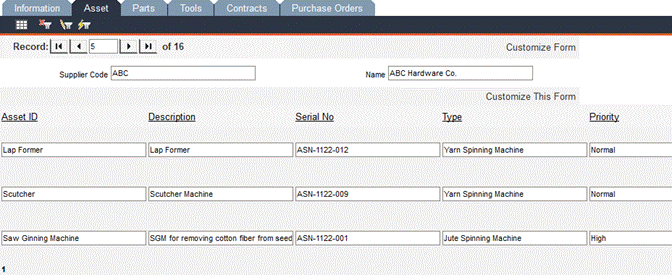
This form provides a list of all of the assets associated with a supplier. You cannot enter or edit any information here. To edit this information, navigate to Data Administration -> Assets and make the necessary changes. Return to the Suppliers -> Asset tab to view the updated information.
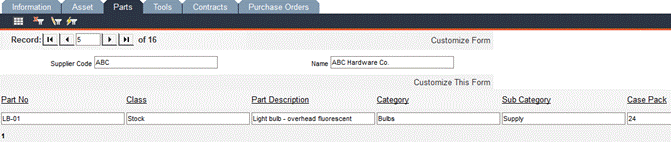
This form provides a list of all of the parts associated with a supplier. You cannot enter or edit any information here. To edit this information, navigate to Inventory -> Part Entry and make the necessary changes. Return to the Suppliers -> Parts tab to view the updated information.
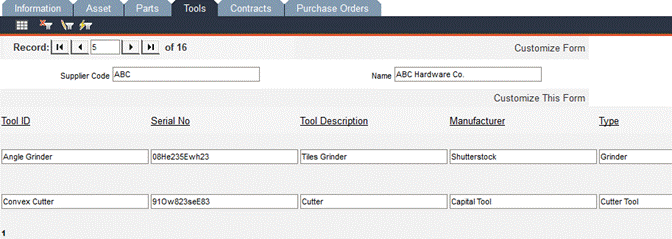
This form provides a list of all of the tools associated with a supplier. You cannot enter or edit any information here. To edit this information, navigate to Tools -> Tool Entry and make the necessary changes. Return to the Suppliers -> Tools tab to view the updated information.
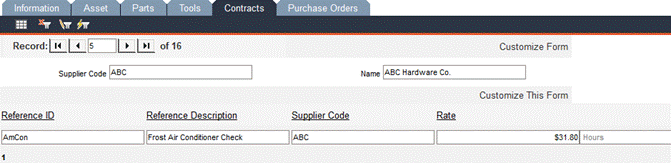
This form provides a list of all of the contracts associated with a supplier. You cannot enter or edit any information here. To edit this information, navigate to Data Administration -> Contractors and make the necessary changes. Return to the Suppliers -> Contracts tab to view the updated information.
This form provides a list of all of the purchase orders associated with a supplier. You cannot enter or edit any information here. To edit this information, navigate to Inventory -> Purchase Orders and make the necessary changes. Return to the Suppliers -> Purchase Orders tab to view the updated information.