FaciliWorks includes a large variety of enhanced reports that allow you to see comparisons and trends regarding asset downtime, inventory value, maintenance hours required or expended and estimated costs. All of these reports can be viewed on-screen, printed or emailed. Additionally, enhanced reports are designed to export to Excel and other formats for advanced ad-hoc reporting. Save any enhanced report to your favorites located on the dashboard. A user’s favorites are only visible to that user.
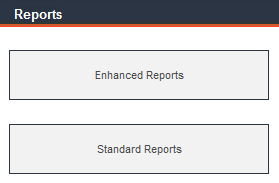
From the Main Menu, click Reports.
Select either Enhanced Reports or Standard Reports; a list of reports will be displayed. Click the title of the desired report.
The selection of an enhanced report will open a filter that allows you to define a specific group of records to analyze. Some reports allow you to sort data according to your preference, many reports give you a choice between a summarized listing and a detailed report and most of the report filters contain special options. The filter options will vary depending on the report you’ve chosen to view, i.e., Date, Asset ID, Task ID, Asset Type, Current Location, Description, Staff ID, etc. To view all records, leave all filter fields blank. Use the Clear Filter button to clear all field contents.
In the example below, the Asset Listing report will be filtered for all fire-related, active assets. Begin by selecting a field by which to filter and then enter the remaining criteria in that row. Click the Add button to the right of that row. Enter a second field and remaining criteria. Continue to add criteria as needed.
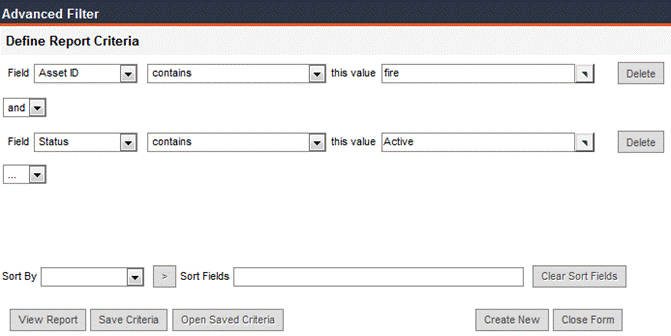
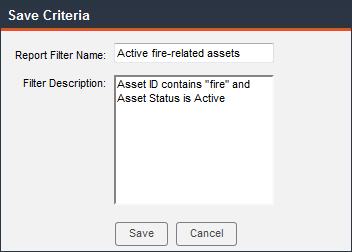
To save this report as a favorite, click Save Criteria; in the Save Criteria window, enter a name and description of the report:
The report will now be displayed in Report Favorites on the dashboard:

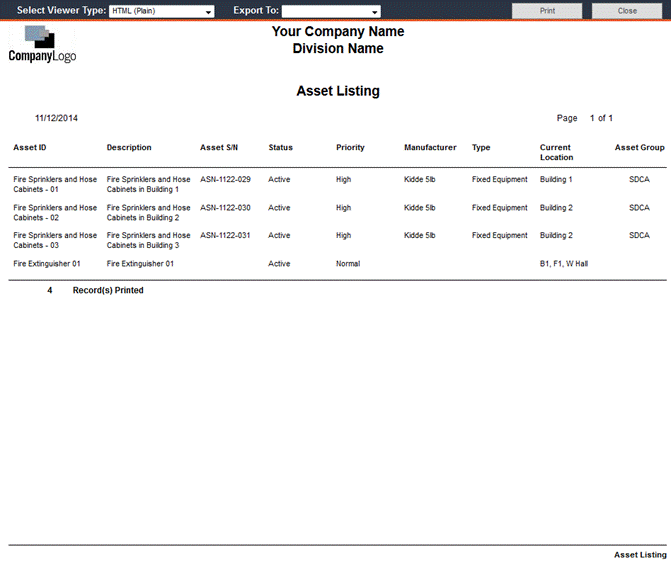
Back on the report filter, after entering criteria, click View Report. The report opens in a separate window. You can select the type of viewer to use for enhanced reports: PDF, HTML or HTML plain. From this window, the report can be printed or exported as a file.
The Standard Reports section is comprised of all reports from previous FaciliWorks 8i versions, including any custom reports that were written in past versions. If you were not using previous version of FaciliWorks 8i, it is recommended to use enhanced reports only.
Upon selecting a standard report, a filter will be displayed, allowing you to filter records by various criteria. The filter options will vary depending on the report you’ve chosen to view, i.e., Date, Asset ID, Task ID, Asset Type, Current Location, Description, Staff ID, etc. To view all records, leave all filter fields blank. Use the Clear Filter button to clear all field contents.
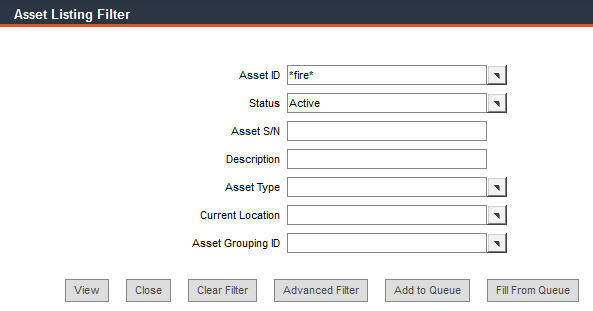
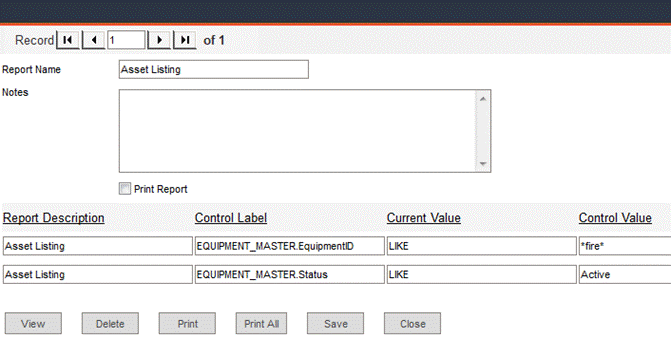
To save the criteria for quick access in the future, click Add to Queue; you’ll see a confirmation message. Later when you want to access this report again, navigate to Reports -> Standard Reports -> Report Queue. Your report criteria will be displayed; click View to see the report.
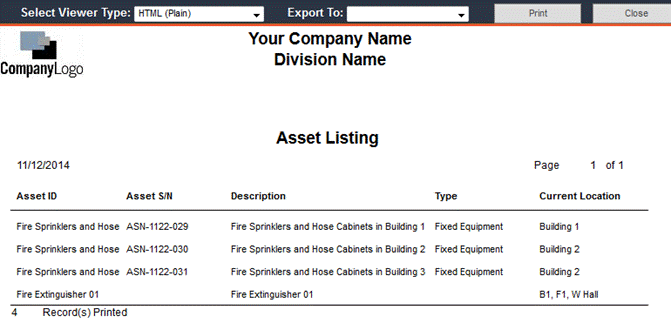
Back on the report filter, after entering criteria, click View. The report opens in a separate window. You can select the type of viewer to use for enhanced reports: PDF, HTML or HTML plain. From this window, the report can be printed or exported as a file.
Report Titles and Descriptions
Agreement Aging: A detailed list of expiration dates of warranties and service agreements that includes Asset ID, Description, Supplier, Warranty Name and Type, Agreement Term (Date and Meter), Effective Date, Expiration Date, Days Left, and Meter Left.
Agreement Due Listing: A detailed list of expiration dates of warranties and service agreements and includes Asset ID, Description, Current Location, Effective Date, Warranty Cost, Asset User 1, Asset User 2, Storage Location and Agreement Term.
Asset Barcode Label (½, 1 ½ , 1 Inch): Use this report to print barcode labels for your assets. In the filter, you can select the width of the label (½”, 1”, or 1½”). The length of the barcode determines the length of the label; FaciliWorks will print the shortest possible label.
Asset Detail Report: Detailed asset information, including status, importance, serial number (S/N), manufacturer, current location and storage location.
Asset Listing: A listing of current assets, ordered by Asset ID, categorized by:
1. Current Location
2. Asset Type
3. Current Location with Tasks
4. Description
5. Description with Tasks
Asset Listing by Asset Type: A list of current assets, ordered by asset type.
Asset Listing by Current Location: Current assets grouped by current location and ordered by Asset ID within each group.
Asset Listing by Current Location with Tasks: Current assets with associated tasks, grouped by current location and ordered by Asset ID within each group.
Asset Listing by Description: Current assets, ordered by asset description.
Asset Listing by Description with Tasks: Current assets with associated tasks, ordered by asset description.
Asset Listing with Calibration Schedule: Includes Asset ID, S/N, Description, Type and Calibration Frequency.
Asset Status History by Asset ID: A list of assets by Asset ID and their status.
Asset Status History by Status: A list of assets by status.
Asset Status History Summary: A summarized list of asset status.
Asset Status Report: This asset status report creates a summarized list of assets, based on the status you select. Use this report to print a list of all inactive assets or items in need of repair. You can also print a list of your spare or backup assets. If you leave the Status field blank, the list will include equipment of any status.
Asset Usage History: A listing of when, where and for what purpose you’ve used assets during a specific time frame. You can filter for assets issued to one or more departments, for one or more purchase orders or for one or more part numbers. This report helps you provide documentation for billing and cost accounting and it can be a valuable tool for long-term asset purchase and replacement planning.
Component Listing Report by Child: Listing of child assets and their corresponding secondary child assets, including Asset ID, S/N, Description, Type, Current Location and Warranty Frequency.
Component Listing Report by Parent: Listing of parent assets and their corresponding child assets, including Asset ID, S/N, Description, Type, Current Location and Warranty Frequency.
Asset Analysis by Contract Cost with Component: An analysis of scheduled and unscheduled maintenance costs for an asset. It includes the cost of child assets as part of the cost of the parent asset, hence the term “with component.” This report is sorted by the cost of contract items for the maintenance.
Asset Analysis by Contract Costs: An analysis of scheduled and unscheduled maintenance costs for an asset. It is sorted by the cost of contract items for the maintenance.
Asset Analysis by Downtime Hours: An analysis of scheduled and unscheduled maintenance costs for an asset. It is sorted by the number of maintenance downtime hours.
Asset Analysis by Labor Cost with Component: An analysis of scheduled and unscheduled maintenance costs for an asset. It includes the cost of child assets as part of the cost of the parent asset, hence the term “with component.” This report is sorted by the cost of labor items for the maintenance.
Asset Analysis by Labor Costs: Lists the labor costs associated with each asset, sorted by Asset ID.
Asset Analysis by Labor Hours: An analysis of scheduled and unscheduled maintenance costs for an asset, sorted by the number of labor hours.
Asset Analysis by Labor Hours with Component: An analysis of scheduled and unscheduled maintenance costs for an asset. It includes the cost of child assets as part of the cost of the parent asset (with component). This report is sorted by the number of maintenance labor hours.
Asset Analysis by Part Cost with Component: An analysis of scheduled and unscheduled maintenance costs for an asset. It includes the cost of child assets as part of the cost of the parent asset (with component). This report is sorted by the cost of parts used for maintenance.
Asset Analysis by Part Costs: An analysis of scheduled and unscheduled maintenance costs for an asset. It is sorted by the total cost of parts used for maintenance.
Asset Analysis by Total Cost with Component: An analysis of scheduled and unscheduled maintenance costs for an asset. It includes the cost of child assets as part of the cost of the parent asset (with component). This report is sorted by the total cost of contracts, parts and labor associated with the asset’s maintenance.
Asset Analysis by Total Costs: An analysis of scheduled and unscheduled maintenance costs for an asset. It is sorted by the total cost of contracts, parts and labor associated with the asset’s maintenance.
Asset Analysis by Work Order with Component: This report is an analysis of scheduled and unscheduled maintenance costs for an asset. It includes the cost of child assets as part of the cost of the parent asset (with component). This report is sorted by work order.
Asset Analysis by Work Orders: An analysis of scheduled and unscheduled maintenance costs for an asset and is sorted by work order.
Cost Center Summary: Displays each month of the specified year with the associated values for budgeted amounts, actual costs and the difference between the two. Totals for each of these fields are located at the bottom of the report.
Operating Costs Detail Report: A detailed listing of an asset’s operating costs, i.e. Fuel, Oil and Tire. (These are three of the four sub-tabs within the Assets -> Operating Costs tab.)
Other Costs Detail Report: A detailed listing of an asset’s operating costs aside from fuel, oil and tires, i.e. the costs entered into the Assets -> Operating Costs -> Other sub-tab.
Other Costs Summary Report: A summarized listing of an asset’s operating costs aside from fuel, oil and tires, i.e., the costs entered into the Assets -> Operating Costs -> Other sub-tab.
Task Detail Listing: The filter for this report permits you to search for tasks by ID, priority, type or assigned technician. Use the Shutdown checkboxes to isolate tasks that require asset or facility shutdowns. Task details included in the report are: labor, contracts, parts, tools, variables and procedures required for each task and a notation of whether the maintenance schedule is fixed or floating.
Task Due Listing by Asset ID: Tasks due, sorted by Asset ID.
Task Required Parts List: Required parts for each task and also includes basic task information such as ID, priority, technician, type and time needed to perform the task.
PM Task Due Listing: Includes From Due Date, To Due Date, Asset and Task IDs and Descriptions, Task Frequency, Priority and Type, Asset Downtime and Next Due (both Date and Meter).
Assets from WO with Images: All assets currently associated with open work orders along with their associated images.
Backlog Work Orders: Active assets that are past due for maintenance based on date or meter reading.
Multiple Asset Work Order: Work orders with multiple assets.
Open Work Orders: Incomplete work orders sorted by work order number; includes asset ID and description, task and staff IDs, cause, amount of time required, etc.
Open Work Orders from Requests: A summary of work orders, filtered by date, asset or task ID, cause, requester or technician. You can also filter for complete or incomplete work orders and for emergency or non-emergency work orders.
Procedure Attachments: Lists each work order, its associated procedures and the procedures’ associated attachments.
Work Order: Use this report to view work orders created or completed during a specific time period. You can view or print work orders for one or more technicians, locations, assets or tasks. You can also choose to view only emergency or non-emergency work orders (or both) and/or only complete or incomplete work orders or both.
WO - Abridged: A summarized version of the Work Order report.
Work Order Actual Hours by Technician: A listing of work orders detailing the actual hours worked by the technician.
Work Order Compact with Full Proc Text: A compact listing of work orders, including meter readings, due dates, tool listings and complete procedure text for each work order.
Work Order Compact with Proc Name Only: A compact listing of work orders, including meter readings, due dates, tool listings and procedure name.
Work Order Due Listing (by Asset ID): All work orders due, (sorted by Asset ID), including the associated task information.
Work Order Progress: The progress of your current work orders. You can filter by date range on progress set, date range on progress change, Asset ID, progress name, requester and priority.
Work Order Summary: A list of all work orders with completion status and date, sorted by Asset ID. It also includes asset description and task ID and type.
Work Orders by Location: Work order information for assets, sorted by location.
Asset Type Average Downtime: Average and total downtime and scheduled work orders for each asset.
Asset Type Downtime by Total Work Orders: Sorted by the total number of work orders, this report calculates the total downtime and average downtime for each asset.
Cost Center Average Downtime: A list of average downtime by cost center including total work orders for each cost center.
Labor Hours: Number of labor hours spent by each staff member on each work order. The list is sorted first by Staff ID, then by work order number and includes the total number of hours worked.
Technician Average Downtime: A list of each technician’s total number of work orders, total amount of downtime and average downtime. The list is sorted by average downtime.
Work Order Cause Downtime Average: Sorted by cause, this report lists the total number of work orders, total amount of downtime and average downtime for each cause.
Work Order Compare: Use this report to compare the costs of scheduled and unscheduled work orders, sorted by Asset ID, i.e., contract, part and labor costs. The following reports also compare the costs of scheduled and unscheduled work orders:
Work Order Compare Asset & Task Only
Work Order Compare Asset Only
Work Order Compare with Component
Work Order Cost Analysis: The Work Order Cost Analysis report gives you a quarterly sum of itemized work order costs, totals for the current year and previous year and a grand total (lifetime). Use it to quickly see summarized annual work order costs filtered by asset, task, technician or location.
Work Order Cost Analysis with Component: This report provides all the details of the Work Order Cost Analysis report, plus it includes work order costs from all attached components.
Work Order Cost by Cause: Lists each Work Order and sorts in ascending order by Cause.
Work Order Costs and Labor: Summarizes each task, including the costs for contracts, labor and parts, category totals and a grand total. The filter permits you to isolate maintenance costs by asset, task, location or technician. You can filter for one task and compare the cost of the same task for different assets or for different technicians. You can also isolate emergency work orders for comparison with scheduled and unscheduled work orders.
Work Order Costs and Labor with Component: This report includes work order costs and labor from all attached components.
Work Order Created to Close: Permits the maintenance supervisor to monitor overall response time for maintenance personnel including Work Order performance time. This report tracks the time between Work Order creation and Work Order completion.
Work Order Created to Started: This report will permit the maintenance supervisor to monitor initial response time for maintenance personnel. This report tracks the length of time between when a Work Order is created and when work begins on the Work Order. Note: maintenance personnel should select the Work Order Started Progress Name when work begins on a Work Order for more accurate accounting.
Work Order History: The Work Order History filter and report are similar to the Work Order filter and report. You can select work orders for one or more technicians, locations, Asset, or tasks. The filter permits you to select work order created and completed date ranges.
Work Order History Summary: Lists each work order associated with an asset and is sorted first by Asset ID, then by Task ID. It also shows the date done, technician and total hours.
Work Order History with Component: Includes the work order history from all attached components.
Work Order on Time Analysis by Asset: This report shows both the number and percentage of work orders that are completed early, late or on time, according to your asset’s maintenance schedule. You can filter for a date range, asset and task ID, technician, cause, description, type and emergency status.
Work Order on Time Analysis by Task: Shows both the number and percentage of work orders that are completed early, late or on time, sorted by task. You can filter for a date range, asset and task ID, technician, cause, description, type and emergency status.
Work Order on Time Analysis by Technician: Sorted by Staff ID, this report shows both the number and percentage of work orders that are completed early, late or on time. You can filter for a date range, asset and task ID, technician, cause, description, type and emergency status.
Work Order Progress History: This report shows the progress of your current work orders. You can filter for date range on progress set, date range on progress change, asset ID, progress name, requester and priority.
Work Order Scheduled vs. Unscheduled: This report can be filtered by date due or completion status. It shows both the number and percentage of scheduled and unscheduled work orders, sorted by asset ID.
Work Order Started to Closed: Permits the maintenance supervisor to monitor Work Order performance time. This report tracks the length of time between the creation date and the completion date of a work order and gives an average number of hours spent per work order. Note: maintenance personnel should select the Work Order Started Progress Name when work begins on a work order for more accurate accounting.
Calibration Service Request (8i Calibration only): Each page of this report is a detailed overview of a calibration service request.
Service Requests Progress: Shows the progress of your current service requests. You can filter for date range on progress set, date range on progress change, asset ID, progress name, requester and priority.
Service Request Progress History: The history of progress changes of your current service requests. You can filter for date range on progress set, date range on progress change, asset ID, progress name, requester and priority.
Service Request Summary: Sorted by date, this summary of service requests shows service request number, entry date, requester, asset ID, desired date, status and emergency status.
Service Request Total Hours: Sorted by date, this report compares estimated hours to actual hours.
Service Requests: Each page of this report is a detailed overview of a current service request. The filter options include request date, staff ID, asset ID, priority, cause, status and approval status.
Service Requests by Requester: List of service requests and their associated details, sorted by requester.
Service Requests Submitted: List of all service requests that have been submitted, including From Created Date, To Created Date, Request Number, Staff ID, Asset ID, Progress Name, Resolution, Emergency Status and Problem.
Contract Listing: This report lists your maintenance contractors (with cost), sorted alphabetically by reference ID.
Part Assignment to Asset: Asset and Part IDs and Descriptions along with part Category, Quantity in Stock and Cost, sorted by Asset ID.
Part Barcode Label (½ Inch, 1 Inch, 1 ½ Inch): Use these reports to print barcode labels for parts. Select from label widths of ½”, 1” or 1½”. FaciliWorks determines label length by the length of the bar code; it prints each label on the shortest length possible. Printing barcodes requires the Maintenance Label Kit.
Part Below Reorder Point: Includes part, description, category, supplier, quantity in stock, reorder point, quantity on order and quantity on backorder.
Part Consumption: Summarizes parts used during each month. It calculates the total used for the time period you select as well as the total cost, based on the part’s current cost multiplied by total number used. Generate this report for one year at a time to see current part consumption information.
Part Listing by Warehouse: Includes part, description, quantity in stock and detailed location information.
Part Listing: This brief parts report includes part number, description, stock type and quantity in stock.
Part Listing (Unattached): This report includes only unattached parts, but displays detailed information about each part including category, sub-category, part cost and inventory value.
Part Listing Critical: Lists all critical parts and highlights parts that are below their reorder point.
Part Listing with Detail / Part Listing Detail: Similar to the Part Listing (Unattached) report in that it includes detailed part information such as category, sub-category, part cost and inventory value. This report, however, lists all parts in the database.
Part Listing with Warehouse Info: This report is similar to the Part Listing Detail report in that it includes detailed part information such as category, sub-category, part cost and inventory value. This report also includes warehouse information.
Part Low Stock: Sorted by part number, this report shows each part’s stock quantity, reorder point, quantity on order, etc.
Part Low Stock with Critical Parts Only: Shows the current quantities and reorder points of critical parts.
Parts Predicted Consumption Report: Totals the expected part consumption from open work orders, open PMs and calculated future PMs. It will then display the total of each part required within the time frame specified in the report filter.
Part Reorder Calculation: Calculates the number of parts used in the past and, taking required delivery time into account, calculates how many parts need to be ordered to meet future needs (based on your current needs). You can filter for one or more part numbers or leave the Part No. field blank to see reorder information for all of your parts. The dates in the filter automatically default to the last three months, but can be changed.
Part Valuation by Part No.: Lists the total number of each part in stock and the cost of the entire stock of each part, sorted by part number. Description and supplier for each part are also given.
Part Warehouse Listing: Lists the warehouse in which each part is stored, including the part’s location therein.
Parts Out of Stock: This report provides quantities in stock and on order, order dates, costs and expected delivery dates of all parts, sorted by part number.
Purchase Order History Listing: Lists all purchase orders and their dollar amounts, order dates and received dates.
Purchase Order Summary: A summary of purchase orders placed with each supplier, sorted by supplier code.
Purchase Orders: Each page of the report is a detailed view of a purchase order. You can filter for orders by requisition or purchase order number, staff ID, supplier code, expected delivery date or date received.
Re-Order Part Listing: This is the report that opens when you click the View Orders button in Inventory -> Create Purchase Orders.
Procedure Listing: A list of every procedure name with full procedure text.
Procedure Listing by Asset ID: Displays each asset, its associated tasks and associated procedure names (procedure text is not included).
Procedure Listing by Asset Task: This report shows the procedure -> task -> asset relationship.
Procedure Listing by Procedure Name: Sorted by procedure name, this report lists the assets and tasks associated with each procedure.
Procedure Listing with Attachments: Displays full procedure text and procedure attachments (images, etc.) for each procedure.
Staff Cert. Due Listing: Lists each staff member’s certifications and corresponding expiration dates.
Staff Labor Performance Detail: Sorted by Staff ID, this report shows estimated hours, actual hours and a productivity percentage for each asset on which that staff member performed maintenance. In the filter window, you can search by the creation or completion dates, staff, asset and task IDs and craft code.
Staff Labor Performance Summary: Sorted by Staff ID, this report shows total numbers of estimated hours and actual hours as well as a productivity percentage.
Staff Listing: All the current staff members and their hire dates, departments and job titles.
Staff Training Report: Shows your staff’s certifications and other training and qualifications.
Supplier Listing by Asset ID: Sorted by Asset ID, this report includes Supplier information for each Asset.
Supplier Listing by Supplier Code: Sorted by supplier code, this report lists all suppliers, their category, contact information and activity.
Supplier Listing by Supplier Code with Asset Data: Sorted by supplier code, this report lists all suppliers, their category, contact information, activity and all assets and parts they supply.
Supplier Listing by Supplier Name: Sorted by supplier name, this report lists all suppliers, their category, contact information and activity.
Supplier Listing by Supplier Name with Asset Data: Sorted by supplier name, this report lists all suppliers, their category, contact information, activity and all assets and parts they supply.
Supplier Listing by Supplier Type: Sorted by supplier type, this report lists all suppliers, their category, contact information and activity.
Supplier Listing by Type with Asset Data: Sorted by supplier type, this report lists all suppliers, their category, contact information, activity and all assets and parts they supply.
Tool Barcode (½ Inch, 1 Inch, 1 ½ Inch): Use these reports to print barcode labels for tools. Select from label widths of ½”, 1” or 1½”. FaciliWorks determines label length by the length of the bar code; it prints each label on the shortest length possible. Printing barcodes requires the Maintenance Label Kit.
Tool Issue History: This report shows tool issue and return information. The filter is designed so that you can prepare a report that displays the usage for one or all tools issued or returned on a particular day. This report also shows the number of cycles used per issuance and the tool’s current location.
Tool Listing: Sorted by Tool ID, this report gives detailed information about every tool.
Tool Listing by Asset ID: If you leave the Tool ID field blank in the report filter, the report will list each asset with all its associated tasks and tools. If you filter for a specific tool, this report will only list assets that require that tool. You can filter reports by:
Tool Listing by Tool: Sorted by Tool ID, this report lists each tool and its associated assets and tasks.
Out of Limit Variables: Lists variables that users have tested and marked as beyond minimum or maximum values. This report can be filtered by work order completed or created date, asset or task ID, variable and units.
Variable History Report: Each page of this report details the history of a variable, including asset, maintenance date, reading, units, etc. This report can be filtered by work order completed or created date, asset or task ID, variable and units.
Variable Listing: Sorted by variable name, this report details each variable, including variable notes (which could include variable testing instructions, variable testing checklist, etc.).
Audit Cards: This option allows you to print audit cards for a selected asset, task or both. Before a technician performs maintenance, leave an audit card in the work area. The return of the audit card demonstrates that the technician was on-site and actually performed the work. If used randomly, audit cards can be effective follow-up tools.
Audit Trail Report: Prints an audit trail report showing date/time, user ID, object and action taken. You can filter this report by date/time, object, user, action and data key.
Blank Forms: These templates can be printed and used as guides prior to entering data into FaciliWorks.
Blank Form - Asset Entry
Blank Form - Contract Entry
Blank Form - Part Entry
Blank Form - Procedure Entry
Blank Form - Purchase Entry
Blank Form - Service Request Entry
Blank Form - Staff Entry
Blank Form - Supplier Entry
Blank Form - Task Entry
Blank Form - Tool Entry
Blank Form - Tool Issue and Return
Blank Form - Tool Issue Sheet
Blank Form - Tool Return Sheet
Blank Form - Variable Entry
Blank Form - Work Order
Budget by Cost Center: Shows a table of budgeted costs, actual costs and the difference between the two, by month; one report is generated for each cost center and each year.
Checklist Listing / Checklist Listing with Full Detail: A detailed listing of all checklist data, sorted by checklist name.
Group Permissions and Users: Details each user group’s permissions (Add/Edit/Delete, Read/Write and Visible-Enabled) for all objects within FaciliWorks and includes control name and control type.
PM Sign-in Sheet: Attach or post the PM Sign-In Sheet to an asset for staff members to log maintenance performed on the asset. One sheet is generated for each asset in the database. In the filter, search by asset description to generate the desired sheet.
Report Control Listing: This report begins with Advanced Report Filter which is used the same way as the Advanced Filter (please see Program Conventions for detailed instruction) and click Preview to view your report. This report displays report names with their associated report control text (found at the bottom of every report page). Print the report to write new report control text (by hand) in the empty New Text box.
Maintenance Warranty Listing: Includes PM/WO number, the associated asset and the asset’s warranty.
Audit Log Reports (available in Enhanced Reports): FaciliWorks’ audit log captures before and after field values and the Audit Log reports are a useful way to track these changes. Suppose that in a work order, the Comments field had been changed and you want to find out what the original comments were prior to their being overwritten. You would go to the Auditlog Maintenance report and in the filter for the report, you’d filter for the work order number. In the generated report, you’d do a search (Ctrl+F) for the current contents of the Comments field. That line of the report will show that current value along with the previous value.
Auditlog Assets: shows all change events (Update, Insert and Delete) from all of the tabs in Assets.
Auditlog Tasks: shows all change events (Update, Insert and Delete) from all of the tabs in Tasks.
Auditlog Maintenance: shows all change events (Update, Insert and Delete) from all of the tabs in Edit PMs and Work Order Manager.
The general Auditlog report shows all change events included in the three reports above.
Assets from PM with Images: Provides a list of assets associated with current preventative maintenance orders and includes any associated images.
Backlog PM: Sorted by Asset ID with Task ID, this report lists all work orders/PMs that are past due and need to be completed.
Multiple Asset PM: Each page of this report gives a list of all open work orders/PMs for each task; the pages of this report are sorted by Asset ID.
Open PM: Lists each asset’s tasks and associated open work orders/PMs, sorted by Asset ID.
Open PM Labor Hours: Sorted by PM number, this report lists each PMs asset, task, priority and labor hour and next date due information.
Open PM Summary: Summary of all open PMs including asset, task, priority, frequency and next date due information.
Overdue PMs: Sorted by PM number, this report lists all overdue PMs including asset, task, priority, technician and next date due information.
PM: Each asset with an open work order/PM will be shown in this report in its own multi-page report which details all work order/PM information including tasks, procedures, parts, tools, due date, etc.
PM Abridged: This report is a condensed version of the PM report, displaying each PMs information on a separate page of the report. It includes basic PM information along with labor, procedure text and parts.
PM Actual Hours by Technician: Within this report are sub-reports which list all work orders/PMs for each staff member, detailing Asset ID, Task ID, estimated hours, actual hours and date. At the end of the staff member’s sub-report are totals of the records, estimated hours and actual hours worked.
PM by Location: Lists all PMs associated with a location, sorted first by location, then by Asset ID.
PM Compact with Full Proc Text: Sorted by Asset ID, this report produces each PM for a specified asset (or all assets), with complete procedure text.
PM Compact with Proc Name Only: Sorted first by Asset ID, then by Task ID, this report lists each PM with its associated details, limiting procedure information to just the procedure name.
PM Due Listing by Asset ID: Use this filter to create a list of work orders for every Asset ID. You can print work orders due for a day, a week, a month, or any other time period. Use the Include Past Due checkbox to include any work orders that are past due, based on the current date.
PM Procedure Attachments: This report provides brief records of PMs with associated procedure names and procedure attachments.
PM Progress: Sorted by Asset ID, this simple report lists each PM and its associated asset, dates and progress.
PM Schedule Reports: PM Schedule Summaries list the schedules of current and future PMs, sorted by Asset ID and provide the total number of PM orders (items) and hours.
Summary by Day: Summarizes the preventative maintenance schedule for each asset, each day of the year.
Summary by Day of Week: Summarizes the preventative maintenance schedule for each asset, broken down by the day of the week.
Summary by Day with Detail: Displays a list of all assets that require maintenance on a given day.
Summary by Week: Summarizes the preventative maintenance schedule for each asset, broken down by week.
Summary by Month: Summarizes the preventative maintenance schedule for each asset, broken down by month.
Summary by Quarter: Summarizes the preventative maintenance schedule for each asset, broken down quarterly.
Summary by Year: Summarizes the preventative maintenance schedule for each asset, broken down by year.
PM Summary: Lists all PM records (completed and not completed), sorted by Asset ID.
Proc Abridged Sub-report: Includes procedure name and full procedure text.
Asset Type Downtime by Total PM: Sorted by the total number of PM records, this report calculates total downtime and average downtime for each asset type.
PM Asset Type Average Downtime: Sorted by average downtime, this report lists each asset type, the number of PM records and the number of downtime hours associated with that asset type. The report then gives the total number of PM records and total downtime and calculates an overall average.
PM Compare: Use this report to compare the costs of scheduled and unscheduled maintenance, i.e. contract, part and labor costs, sorted by Asset ID. The following reports also compare the costs of scheduled and unscheduled work orders:
Work Order Compare Asset & Task Only
Work Order Compare Asset Only
Work Order Compare with Component
PM Cost Analysis: The PM Cost Analysis report gives you a quarterly sum of itemized work order costs, totals for the current year and previous year and a grand total (lifetime). Use it to quickly see summarized annual work order costs filtered by asset, task, technician or location.
PM Cost Analysis with Component: Provides all the details of the PM Cost Analysis report, plus it includes costs from all attached components.
PM Cost Center Average Downtime: A list of average downtime by cost center including total work orders for each cost center.
PM Costs and Labor: Summarizes each task, including the costs for contracts, labor and parts, category totals and a grand total. The filter lets you isolate maintenance costs by asset, task, location or technician. You can filter for one task and compare the cost of the same task for different assets or for different technicians. You can also isolate emergency work orders for comparison with scheduled and unscheduled work orders.
PM Costs and Labor with Component: Includes PM costs and labor from all attached components.
PM History: Details PM history for each asset including attachments, checklists and electronic signatures.
PM History Summary: Lists each PM order associated with an asset and is sorted first by Asset ID, then by Task ID. It also shows the date done, technician and total hours.
PM History with Component: Includes the PM history from all attached components.
PM Labor Hours: The number of labor hours spent by each staff member on each PM order. The list is sorted first by Staff ID, then by PM number and includes the total number of hours worked.
PM on Time Analysis by Asset: Displays both the number and percentage of PM orders that are completed early, late or on time, according to your asset’s maintenance schedule. You can filter for a date range, asset and task ID, technician, cause, description, type and emergency status.
PM on Time Analysis by Task: Displays both the number and percentage of PM orders that are completed early, late or on time, sorted by task. You can filter for a date range, asset, task, technician, cause, description, type and emergency status.
PM on Time Analysis by Technician: Sorted by Staff ID, this report displays both the number and percentage of PM orders that are completed early, late or on time. You can filter for a date range, asset, task, technician, cause, description, type and emergency status.
PM Progress History: Displays the progress of your current PM orders. You can filter for date range on progress set, date range on progress change, asset, progress name, requester and priority.
PM Technician Average Downtime: List of each technician’s total number of PM orders, total amount of downtime and average downtime. The list is sorted by average downtime.
Assets from Multitask PM with Images: Lists any asset that is part of a multitask preventative maintenance and includes any attached images.
Backlog Multitask PM: Sorted by Asset ID, this report lists any multitask preventative maintenance records that are due.
Multitask PM: Each asset with an open multitask PM will be shown in this report in its own multi-page report which details all PM information including labor, contracts, parts, variables, due date, etc.
Multitask PM by Location: Multitask PM by Location is a simplified report listing multitask preventative maintenance records, sorted by the current location of the asset.
Multitask PM Compact with Full Proc Text: This is a simplified report that lists multitask preventative maintenance records and includes complete procedure text.
Multitask PM Compact with Proc Name Only: This is a simplified report listing multitask preventative maintenance records and including just the names of the attached procedures.
Multitask PM History: Lists all the detailed history records for each of the preventative maintenance records.
Multitask PM History Summary: Lists all the simplified history records for each multitask preventative maintenance records, is sorted by Asset ID and includes related tasks and preventative maintenance records with each group.
Multitask PM History with Component: Lists multitask preventative maintenance records including associated components.
Multitask PM Labor Hours: Calculates the labor hours each staff member spends on each preventative maintenance job during a specified time period.
Multitask PM Procedure Attachments: Lists each multitask preventative maintenance record with the procedure attachments.
Multitask PM Progress: Displays the current progress status of each multitask preventative maintenance record.
Multitask PM Progress History: Displays the complete progress history status of each multitask preventative maintenance record.
Open Multitask PM: Lists all currently open multitask preventative maintenance records.
Overdue Multitask PM: Lists all overdue multitask preventative maintenance records including asset, task, priority and technician information.
Assets from Route PM with Images: Lists each asset associated with a route PM along with its attached images and current location.
Backlog Route PM: Displays all route preventative maintenance records that are past due.
Open Route PM: All route preventative maintenance records that are currently open.
Overdue Route PMs: Lists all overdue multitask preventative maintenance records including asset, task, priority, technician and next date due information.
Route PM: Lists all route preventative maintenance records that have been created.
Route PM by Location: All route preventative maintenance records, sorted by current location.
Route PM Compact with Full Proc Text: This is a simplified report listing route preventative maintenance records including complete procedure text.
Route PM Compact with Proc Name Only: This is a simplified report listing route preventative maintenance records and including just the names of the attached procedures.
Route PM History: All of the detailed history records for each of the preventative maintenance records.
Route PM History Summary: A summarized list of all the simplified history records for each of the route preventative maintenance records. This list is sorted by Asset ID and includes related tasks.
Route PM History with Component: This report lists route preventative maintenance records including associated components.
Route PM Labor Hours: Calculates the labor hours each staff member spends on each route preventative maintenance order during a specified time period.
Route PM Procedure Attachments: Each route preventative maintenance record with the procedure attachments.
Route PM Progress: Displays the current progress status of each route preventative maintenance order.
Route PM Progress History: Displays the complete progress history status of each route PM record.
Assets from Multitask WO with Images: Lists assets that are used in multitask work orders and includes any attached images.
Backlog Multitask Work Orders: Any multitask work orders that are past due.
Multitask WO Compact with Full Proc Text: Complete procedure text for each multitask work order.
Multitask WO Compact with Proc Name Only: The name of each procedure for each multitask work order.
Multitask WO Labor Hours: Calculates the labor hours each staff member spends on each work order during a specified time period.
Multitask WO Procedure Attachments: Each multitask work order record with the procedure attachments.
Multitask Work Order: All multitask work order records that have been created.
Multitask Work Order History: Detailed history records for each multitask work order record.
Multitask Work Order History Summary: Lists all of the simplified history records for each multitask work order record, is grouped by Asset ID and includes related tasks.
Multitask Work Order History With Component: Multitask work order history records including associated components.
Multitask Work Order Progress: Current status of each multitask work order record.
Multitask Work Order Progress History: Displays the complete progress history of each multitask work order record.
Multitask Work Order by Location: All multitask work order records, sorted by current location.
Open Multitask Work Orders: All currently open multitask work orders.
Calibration Due Listing (in Standard Reports): Sorted by Gage ID, this report details each gage that is due for calibration, its due date and its calibration frequency. This report can be created automatically. Within Configuration -> Global Settings is an option to Enable Auto Calibration Due Report. When this option is enabled, FaciliWorks will automatically generate this report each time you log in and will ask if you would like to view the report. For more information on Global Settings, please see the FaciliWorks Administrator Guide.
Calibration Due Listing (in Enhanced Reports): This report is similar to the report above, but also includes gage type, calibrator, last calibration date and the projected calibration schedule.
Calibration Due Listing by Due Date: Sorted by due date, this report details each gage that is due for calibration, its due date and its calibration frequency.
Calibration Due Listing by Gage ID: Sorted by Gage ID, this report includes the same information as the standard calibration due listing, plus gage type, calibrator, last calibrated by and calibration hours.
Calibration Failure Notice: This report provides a detailed sub-report for each gage that has failed calibration. It includes standards, findings, before and after measurements, accuracy and the failure statement. The text of the failure statement is entered in the Configuration -> Admin Settings -> Cal Options tab. For more information about Admin Settings, please see the FaciliWorks Administrator Guide.
Calibration History: Details the calibration history of every gage.
Calibration Labels: Use this report function to view and print calibration labels that include Gage ID, description and date due. FaciliWorks determines label length by the length of the bar code; it prints each label on the shortest length possible. Printing barcodes requires the Maintenance Label Kit.
1” x 1”
1” x 2”
1” x 3”
½” x 1”
½” x 2”
½” x 3”
¼” x 1”
¼” x 2”
¼” x 3”
Certificate of Calibration: This report provides a detailed sub-report for each gage that has passed calibration. It includes standards, findings, before and after measurements, accuracy and the certification statement. The text of the certification statement is entered in the Configuration -> Admin Settings -> Cal Options tab. For more information about Admin Settings, please see the FaciliWorks Administrator Guide.
Gage Listing: Sorted by Gage ID, this report provides a list of all gages, their serial numbers, descriptions, types and current locations.
Gage Listing by Gage ID: Sorted by Gage ID, this report provides a list of all gages, their serial numbers, descriptions, types, current locations and calibration frequencies.
Gage Listing by Gage ID by Owner: Sorted by Gage ID and then by Owner, this report provides a list of all gages, their serial numbers, descriptions, owners, next due dates, current locations and status.
Passed Calibration Electronic Signature: This report lists all calibration records in which the Calibration Status is set to Passed (even if the Pass checkbox is not yet checked) and provides the details of each electronic signature affixed to each record.
Completed PM Average Downtime: Sorted by Asset ID, this report lists each completed PM with total downtime and average downtime.
Completed PM Electronic Signature: This report lists all completed PM records and provides the details of each electronic signature affixed to each record.
Completed PM On-time Analysis: This report lists all completed PM records, noting whether or not the PM was completed on time and how many days early or late each was completed.
Completed PMs with Labor Hours: This report lists each completed PM along with asset, task, priority, staff, craft code, actual hours and done date information.
Completed WO Downtime Average by WO Cause: This report lists each cause with cause count along with total and average downtime.
Completed WO Electronic Signature: This report lists all completed WO records and provides the details of each electronic signature affixed to each record.
Completed Work Order Staff Hours: This report lists each technician’s actual hours spent on completed work orders.
Open WO Summary: This report lists all open work orders along with asset, task, problem, cause, emergency priority and days open information and whether or not the work order came from a service request.
Open Work Orders: Sorted by work order number, this report provides asset, task, cause, emergency priority, technician, downtime and next date due information for every open work order.
Open Work Orders from Requests: Sorted by work order number, this report provides asset, task, emergency priority, technician, downtime and next date due information for every open work order that came from a service request. Service request number is also included.
At the bottom of the Standard Reports list is Import/Export Reports. The functionality of this section is identical to that of Configuration -> Import/Export Reports. Please see the Administrator Guide for instruction about importing and exporting reports.