Welcome to FaciliWorks 8i, a Web-based computerized maintenance management software (CMMS) program that gives you an easy-to-use, flexible system for scheduling, managing and tracking your maintenance tasks.
This Administrator portion of this guide is intended to be used by supervisors and network administrators who will be responsible for leading the implementation of FaciliWorks. This guide includes instructions for setting up users, security and user-defined program settings and performing advanced system maintenance features. For more information about entering records into FaciliWorks, please consult the User portion of this guide.
Each FaciliWorks user should have a thorough understanding of the particular functions that he or she will use. It’s not necessary for a user to learn FaciliWorks’ tools and utilities if that user isn’t going to have administrator rights. For this reason, instructions for these tools and utilities are included only in this guide. Keep in mind that some users may need training on basic computer and Windows functions.
CyberMetrics offers convenient and effective training options to fit your needs. Our talented instructors will guide you through the planning, preparation, setup and successful operation of FaciliWorks Enterprise Asset Management Software. You’ll learn how to save time, avoid common mistakes and get the most out of your software.
For more information about FaciliWorks training classes, please call CyberMetrics at 480-295-3465 or toll-free at 1-800-776-3090.
As with any new record control system, be it computerized or manual, it is worthwhile to take the time to plan the implementation.
Major steps to consider are:
Define your needs for the system.
Define when you want to start using FaciliWorks; set both long-term and short-term goals.
Choose system administrator(s).
The first step is to define what your needs are for your maintenance system and then determine how FaciliWorks can help you meet those needs. For example, you may need the system to:
Maintain an inventory of all assets, tools and parts.
Remind you when PM tasks are due.
Maintain a complete history of all asset and repair records.
Maintain a history of tool usage.
Maintain a database of your maintenance procedures.
Maintain a database of your asset suppliers and service providers.
Take the needs that you defined in step one and divide them into short-term and long-term needs (goals). Next, decide on a time frame for your short-term goals and begin working toward them. This will help you make FaciliWorks useful in the shortest possible time.
Short-term needs might include:
Entering records for only active assets (items that are used currently or may be used in the near future).
Entering only the most recent history of maintenance records.
Setting up an internal asset identification numbering scheme (if you don’t currently use one).
Before you begin entering your asset records, you should organize your data and formulate a plan for consistent data entry.
You may wish to categorize assets by type so that you can later quickly generate reports by type. You can also generate reports by asset description, so you may want to enter some common information for each kind of asset.
Or you may find it useful to devise an asset identification scheme that includes the type of asset. For example, an Asset ID that begins with a V indicates that the asset is a vehicle, T indicates a truck, HVAC indicates a facility or P1 indicates Plant 1.
Your Asset ID might also include the area where the asset is used, the cost center to which it belongs, the department responsible for it or any other useful information that would help you instantly identify it.
Next, begin working to satisfy your long-term needs.
Long-term needs might include:
Entering your compete inventory of assets (active, inactive and perhaps employee-owned items).
Entering the complete history of maintenance records (perhaps going as far back as five years).
Setting up maintenance procedures for on-line reference and control.
Reviewing maintenance history and optimizing frequencies or scheduling methods (i.e., calendar-based versus meter-based schedules).
Entering information about your asset and service suppliers.
Tracking Warranties, Service Agreements and Maintenance Agreements
To choose system administrator(s) (the person or group of people responsible for the system), answer these questions:
Who will be responsible for the system?
Who will install the program?
Who will enter the records?
Who will maintain and back up the data files?
Who will take the inventory?
Once you answer these questions, you can decide who should lead your FaciliWorks implementation.
Before you begin entering data into FaciliWorks, you must develop a data-building strategy.
FaciliWorks allows an asset record to represent any item of value to your business, such as a vehicle, facility, building, pump or piece of equipment.
A pump and all its components could be included in a single asset record or the pump itself, motor, starter, etc. could each have its own asset record.
To determine which approach is best for your company, consider the following:
Does each component need a separate history?
Does each component need a separate part list?
Are the components critical or expensive?
If so, you’ll want to enter the pump and its components as separate asset records.
If you’re going to manually enter your asset records, you should examine the order in which you process them. By using FaciliWorks’ Clone function, you can save considerable time and avoid mistakes.
In a typical manufacturing environment, though many assets are used, there may only be a few different types of assets. The only differences between similar assets will be each one’s ID number, serial number and location. They might also share the same maintenance tasks and procedures. If this is the case for your company, you can set up a boilerplate record of each asset type and then clone the boilerplate record when you add a new asset of the same type.
If you are responsible for centrally managing the records of several facilities (which may amount to thousands of asset records), then you might want to use multiple databases (to avoid waiting too long for records to process and for reports to generate).
Your data-building strategy should also include how you are going to handle maintenance tasks.
Should you create stand-alone or cumulative tasks for multiple frequencies, such as semiannual and annual tasks?
Does the annual task include the maintenance procedures of the semiannual or should you create both orders when they coincide once a year?
To begin entering your asset inventory into FaciliWorks, you’ll need to either collect your existing records (such as paper files, cards and printouts) or create new records from scratch. If you’re switching from another computer-based maintenance system, you may be able to import your records to FaciliWorks. FaciliWorks can import records from the application’s standard excel-based templates.
If your records are in a system that uses a proprietary file format, you may still be able to import your records by “printing” a report to a file or writing a software program to extract the records. CyberMetrics can be contracted to assist you with the import and record conversion process.
If you are unable to import records from another computer system and must manually enter your records from hard copy records, you can take this opportunity to carefully review your records for completeness and correctness. Questions that you need to answer include:
Where is the existing information?
How accurate is the data?
Are walk-downs necessary to collect asset information?
Should walk-downs cover all assets or only assets that lack complete, accurate information?
Is the asset still located where it was when the original records were created?
Instruct the data collection person or team on exactly what data to collect and enter. This eliminates the need to look at a record more than once.
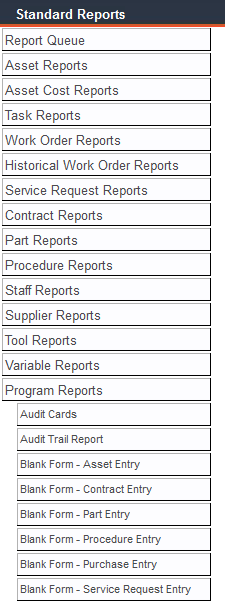
FaciliWorks includes printable data collection worksheets that will allow you to compile organized, complete records to enter into FaciliWorks. Navigate to Reports -> Standard Reports -> Program Reports and select a Blank Form worksheet.
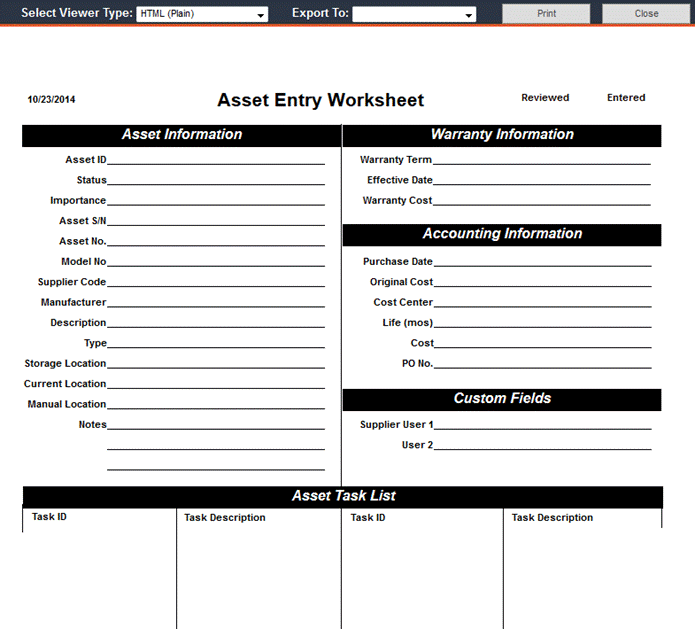
From this window, the worksheet can be printed or exported as a file.